

eCheck Migration Guide
Where to find your eCheck activity before and after your migration date.
Introduction
We will be migrating the internal system of eCheck. Your existing integration and reporting API do not change. The following will change:
- How you view and search transaction activity
- How you view your balance, adjustments and reimbursements
- How you update VIPs
The source of the payment within a User's banking app changesUsers within their banking apps when viewing a transaction will see "Paydirect Billing" instead of "Electronic CHQ".
After the migration date provided to you, you will no longer be able to access the Instadebit portal. Where you look depends on when the transaction occurred, relative to that migration date. See the "Function Map" section for more details.
Navigating Between Reports
- All transactions and information after your migration date are under the relevant pages in the eCheck navigation menu
- All data before your migration date is under Legacy Reports
- Activity on your migration date is treated as after.
If you are unsure when this date is, your migration date is shown on both the Transactions and Legacy Reports pages.
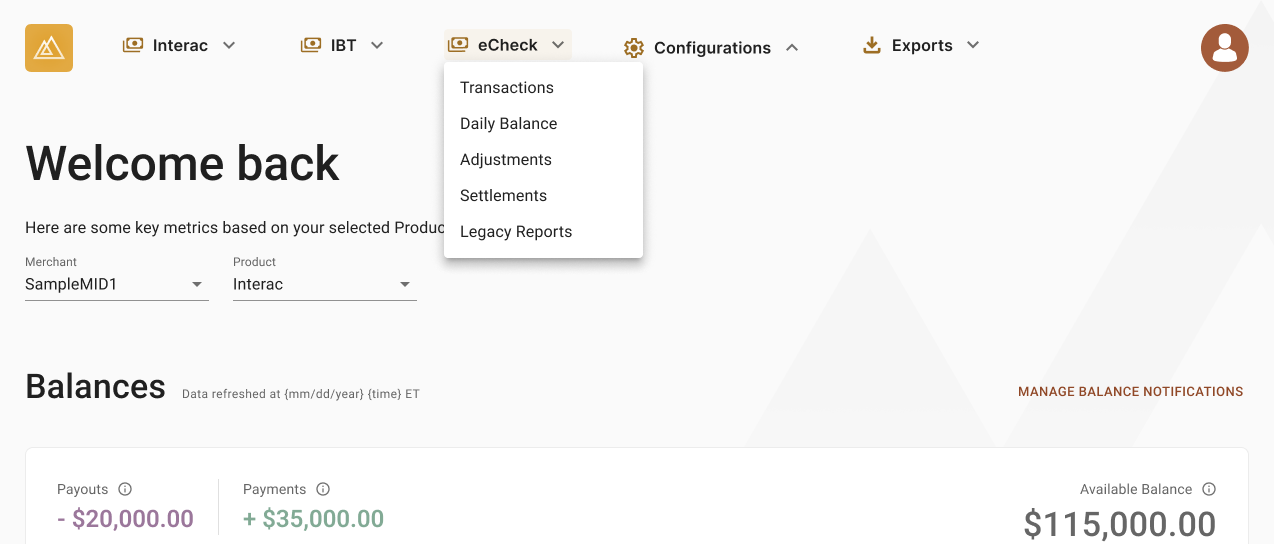
Navigation to eCheck reports
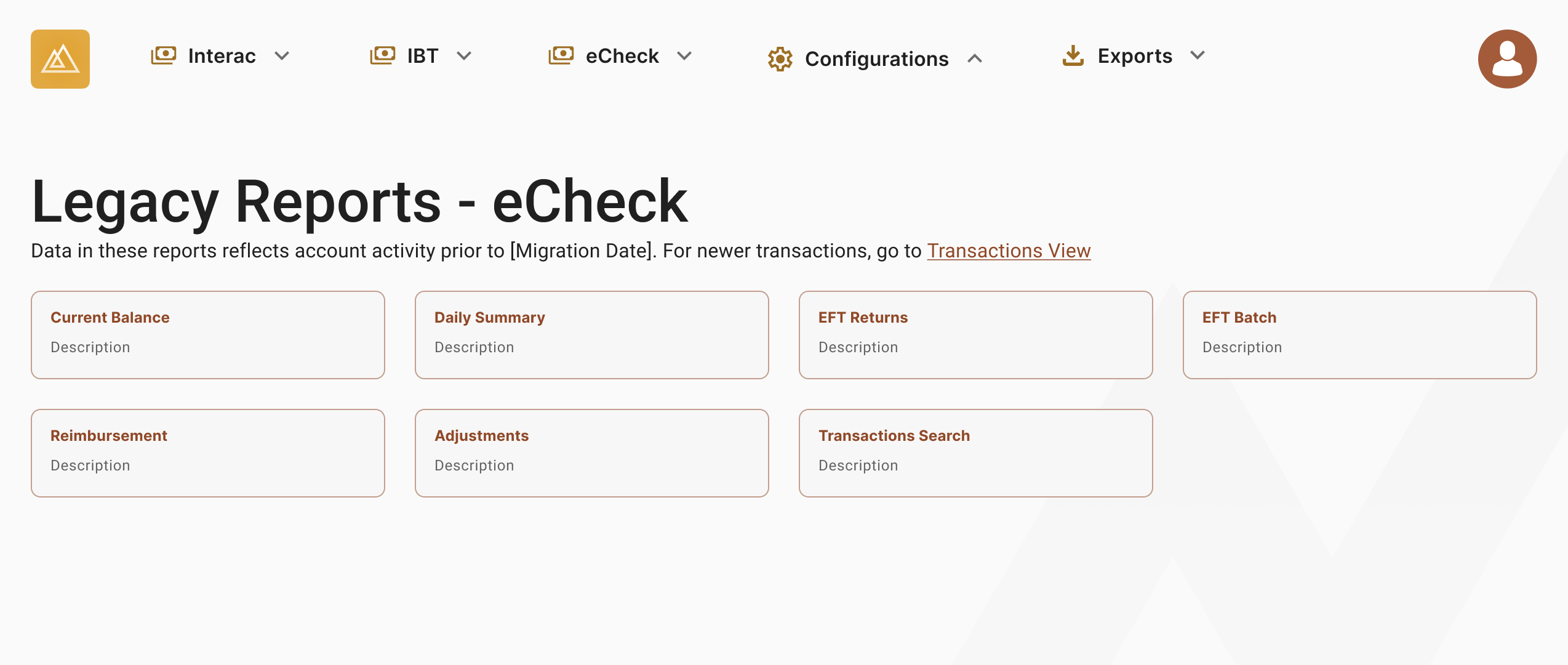
Information you will see when you click on Legacy Reports
Function map
| Function | Instadebit Portal | Transaction occurs before migration (legacy reports) | Transaction occurs after migration |
|---|---|---|---|
| Find / inspect a transaction | Transaction Report | Legacy Reports → Transaction Details | Transaction views → details |
| Search for a transaction | Transaction Search | Legacy Reports → Transaction Search | Transaction views → search |
| View returns | Return Report | Legacy Reports → Returns | Transaction views → filter by returned |
| Review batch activity | Batch Report | Legacy Reports → EFT Batch | Not Required |
| Upload a batch | Upload Batch | Not Available | Not Required |
| Daily Summary | Daily Summary | Legacy Reports → Daily Summary | Daily Balance |
| Account balance | Current Balance | Legacy Reports → Current Balance | Daily Balance |
| Adjustments | Adjustments | Legacy Reports → Adjustments | Adjustments |
| Reimbursement | Reimbursement | Legacy Reports → Reimbursements | Settlements |
| EFT VIP limits | EFT VIP Limit | Not Available | Not self-serve |
| Merchant VIP | Merchant VIP Management | Not Available | To add or change VIP, use Configurations → VIP Consumers. |
Find and inspect a transaction
In Instadebit you used Transaction Report to generate a report of transactions and inspect a row.
Transaction occurred before migration: use Merchant Portal eCheck→ Legacy Reports →Transaction Details. Same job as Instadebit Transaction Report.
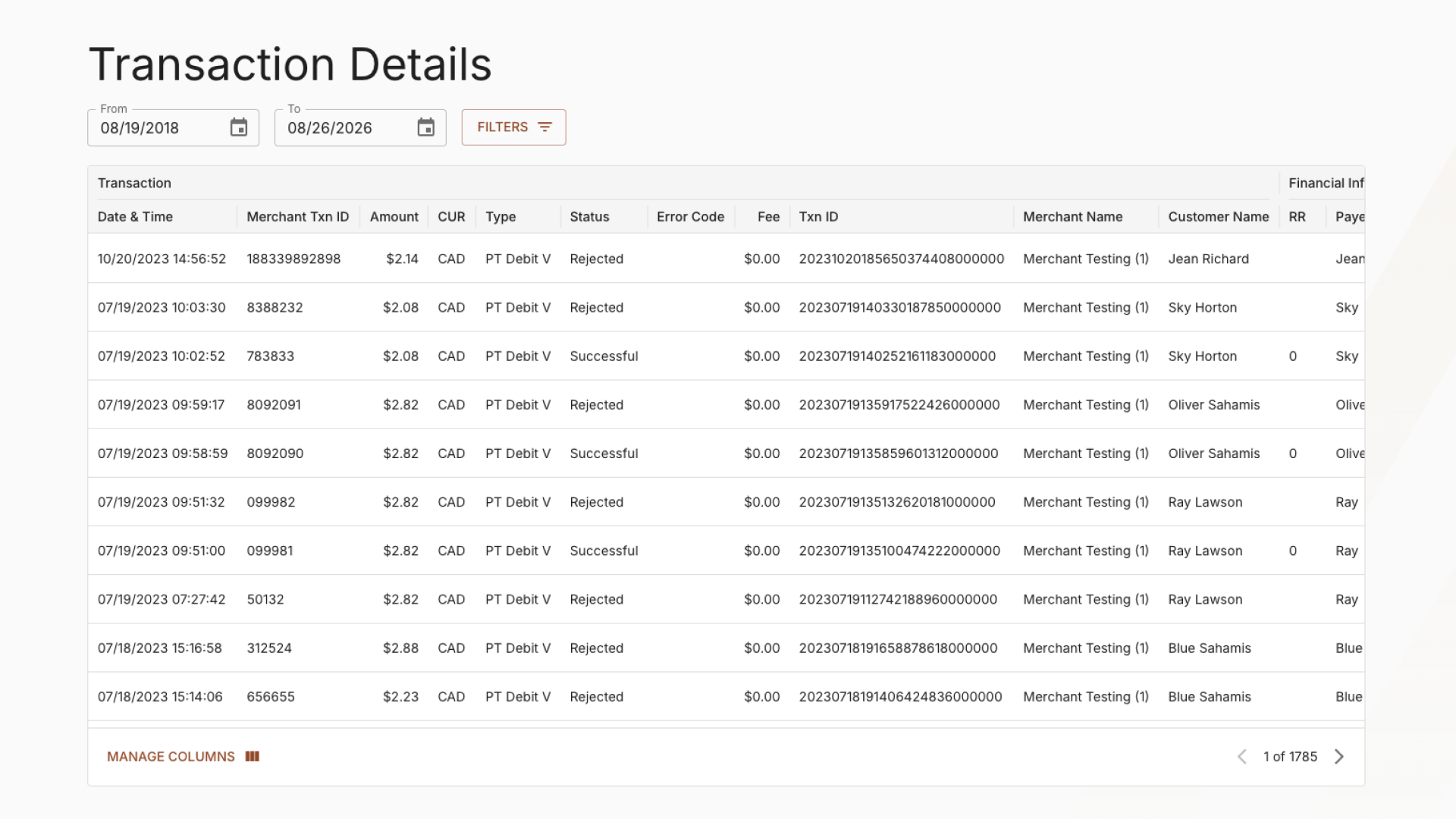
eCheck transaction reports in the merchant portal for transactions occurring pre migration
After migration: use eCheck → Transaction views. Click a row to open Transaction details to see additional information about a transaction.
Legacy Transaction Details columns map as follows for new activity:
| Report column | Example | Transaction views / details | Notes |
|---|---|---|---|
| Date & Time | 7/14/2026 9:11:21 | Created | — |
| Merchant Txn ID | 1784033444-t3 | Merchant transaction reference | Your transaction or order reference. |
| AMT | 100.00, (10.00) | Amount | Signed in the table: money in is positive, money out is negative. Credits and debits are separate tabs (Payments / Payouts), not parentheses |
| CUR | CAD | Shown with amount | — |
| Type | PT Debit / PT Credit | Payments / Payouts tabs | Debits are Payments; credits are Payouts |
Type suffix V | PT Debit V | Shown under constraints on details | Verified identity is not a type suffix anymore |
| Status | S / R | Status | Maps to new statuses: Created, Accepted, Successful, Returned, Rejected, Canceled, Declined |
| Code | E008 | Error Reason | Error reason shows the new code, and you filter by it in Transaction views. The legacy eCheck code (for example E008) is on Transaction details → Metadata. See Error code mapping |
| Fee | 1.10 | Transaction fee | — |
| Trans ID | 20260714133112... | Transaction ID | After migration, the Transaction ID is a UUID. The original eCheck transaction ID (for example 20260714133112…) is on Transaction details → Metadata. |
| Customer | Richard, Jean | Customer | Click to see all activity for that customer |
| RR | 0 | — | This information is no longer provided. |
| PAYEE | Jean Richard | Payment instrument → Account Holder | — |
| Routing / Account | 00302506 / 28*****5371 | Payment instrument | — |
| Check | 200… | — | This information is no longer provided. |
| Tp | C | Payment instrument → Account Type | Formatting as chequing or savings |
Search for a transaction
In Instadebit you used Transaction Search with Merchant Txn ID, bank account last digits, customer last name, or trace #.
Transaction occurred before migration: use Merchant Portal eCheck → Legacy Reports →Transaction Search.
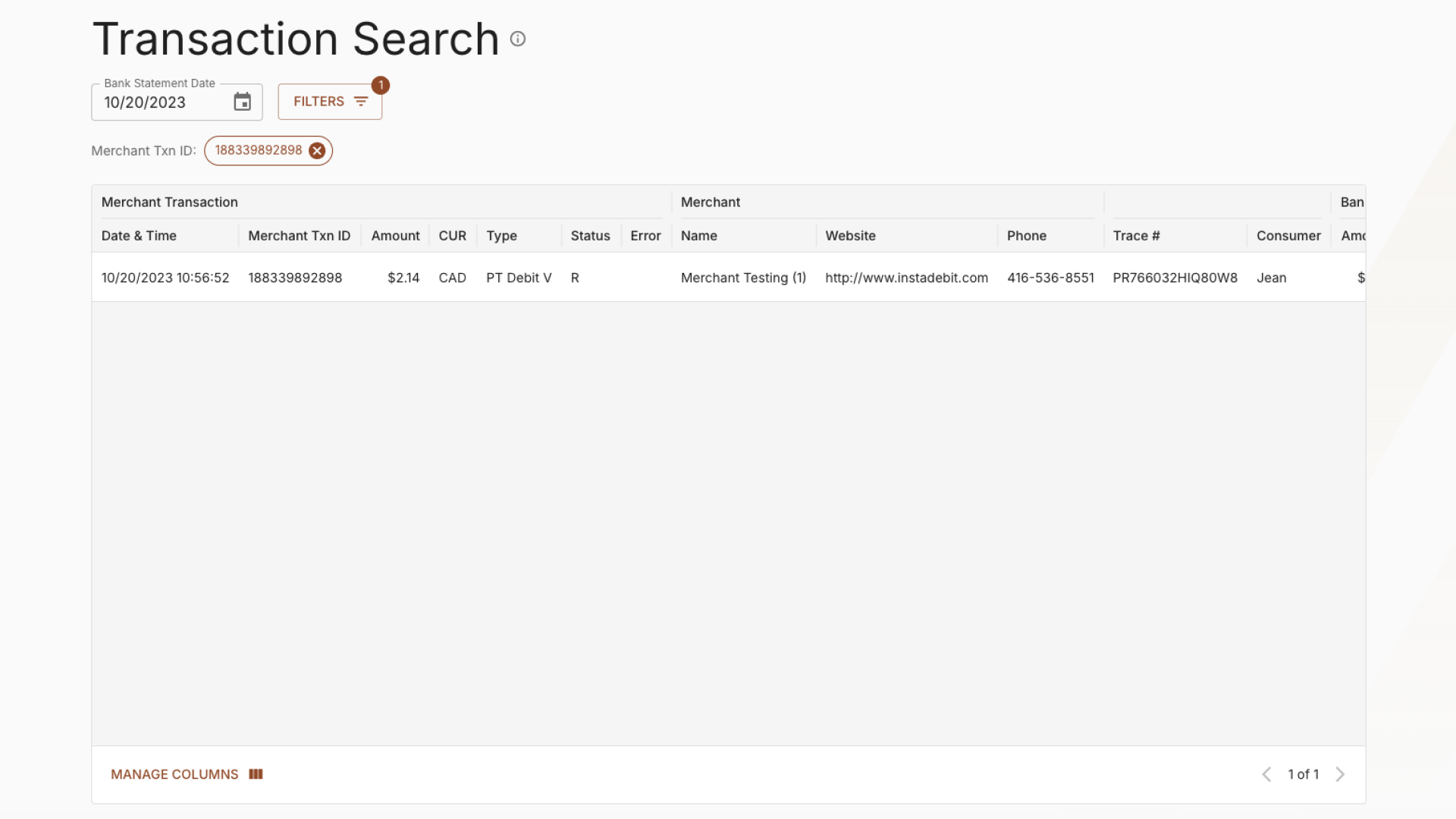
Transactions search for migration transactions in the merchant portal
After migration: search in eCheck → Transaction views. Use:
- Transaction ID
- Your transaction or order reference. (merchant transaction reference)
- Customer Transaction Reference (formerly known as Trace #)
- Customer name, business name, or your merchant customer reference
You will no longer be able to search by
- Bank Account
- Bank Statement (use transaction date)
- Bank Statement Amount (use amount)
View returns
In Instadebit you used Return Report.
Transaction occurred before migration: use Merchant Portal eCheck → Legacy Reports → Returns.
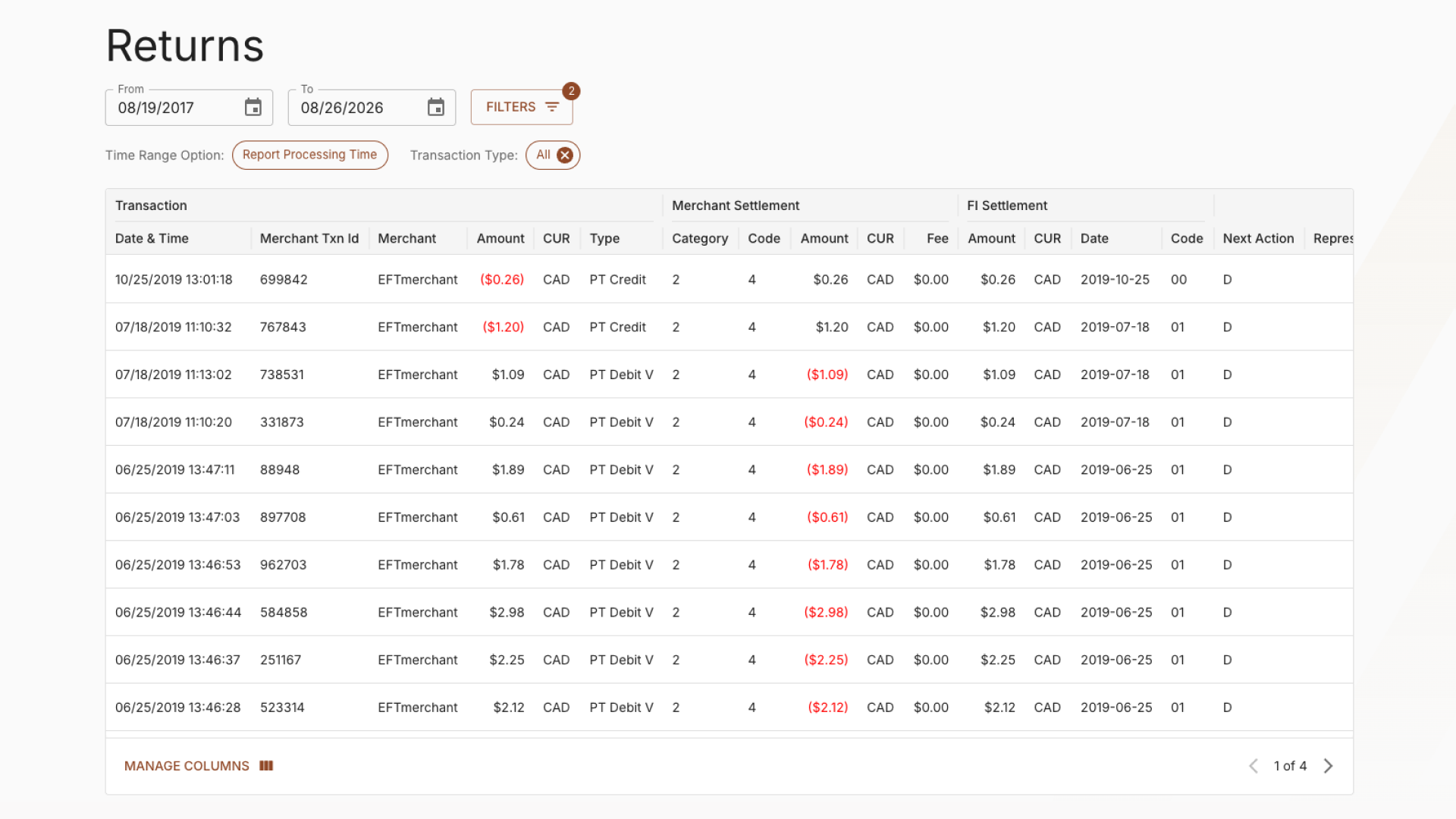
Merchant portal eCheck return reports for all transactions pre migration
After migration: returns are rows in eCheck → Transaction views. Filter by status Returned, then open the row and see Return details for the bank's return reason, the return date, and the return fee. Returns are recorded automatically, so there is no separate Returns report for new activity.
The Instadebit Return Report showed FI Settlement Date, FI Settlement Amount, and Report Date. Return details shows the date we recorded the return and the date we processed it. The returned amount is the transaction amount, because EFT returns are always for the full amount.
Transaction date determines where a return appearsA return appears in legacy reports when its transaction date is before the migration date, even if the return itself was created after the migration. A return appears in the transaction view when its transaction date occurs after the migration date.
Review batch activity and upload a batch
In Instadebit you used Upload Batch to submit a payment file, and Batch Report to review daily batch totals.
After migration: eCheck will no longer be processed in batches. You do not upload batch files, but you will be able to view historic batches using eCheck → Legacy Reports → EFT Batch
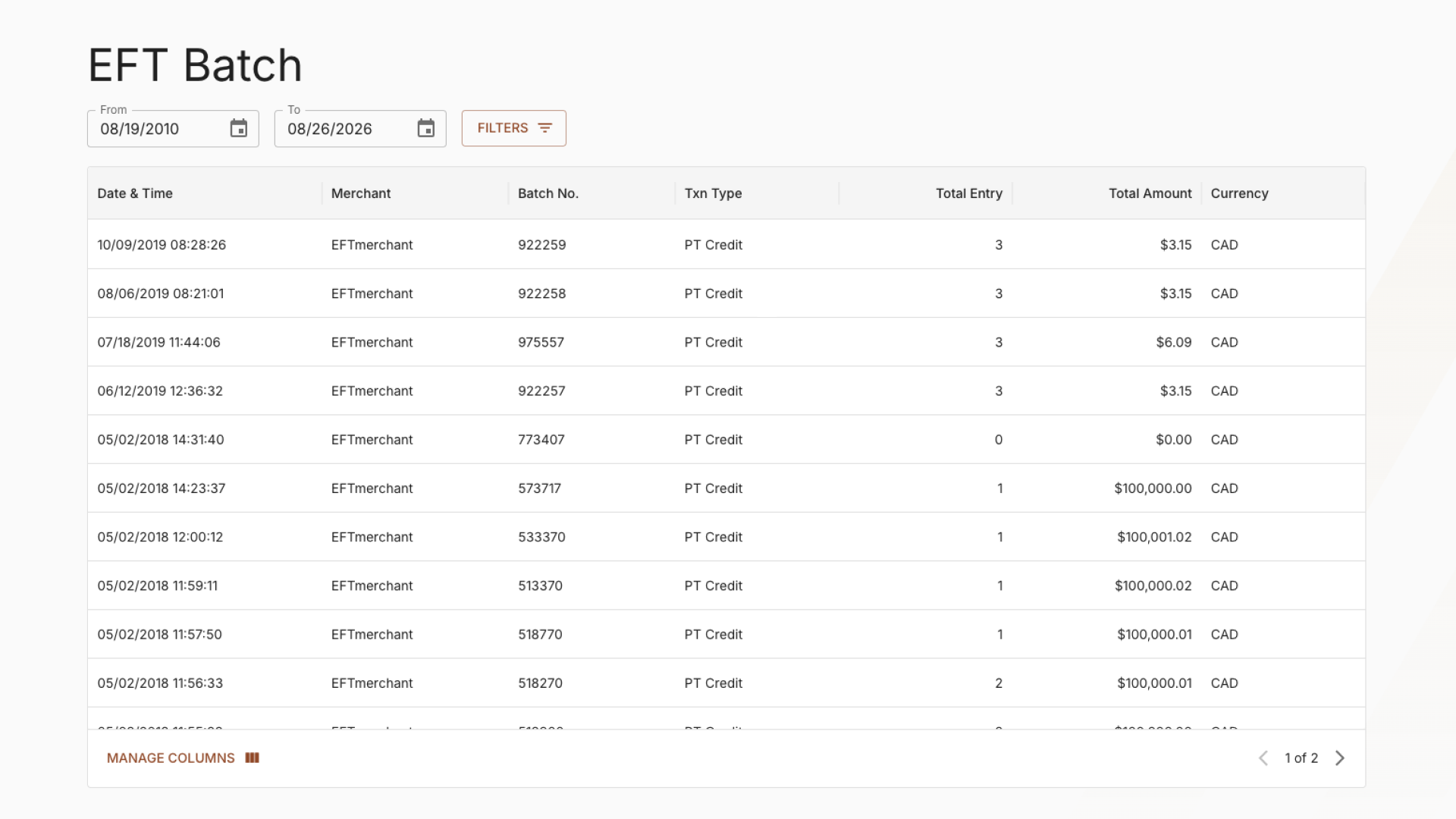
EFT Batch page for historic pre migration batches in the merchant portal
Daily Summary
In Instadebit you saw summary report of merchant daily activities.
Transaction occurred before migration: will be in eCheck → Legacy Reports → Daily Summary.
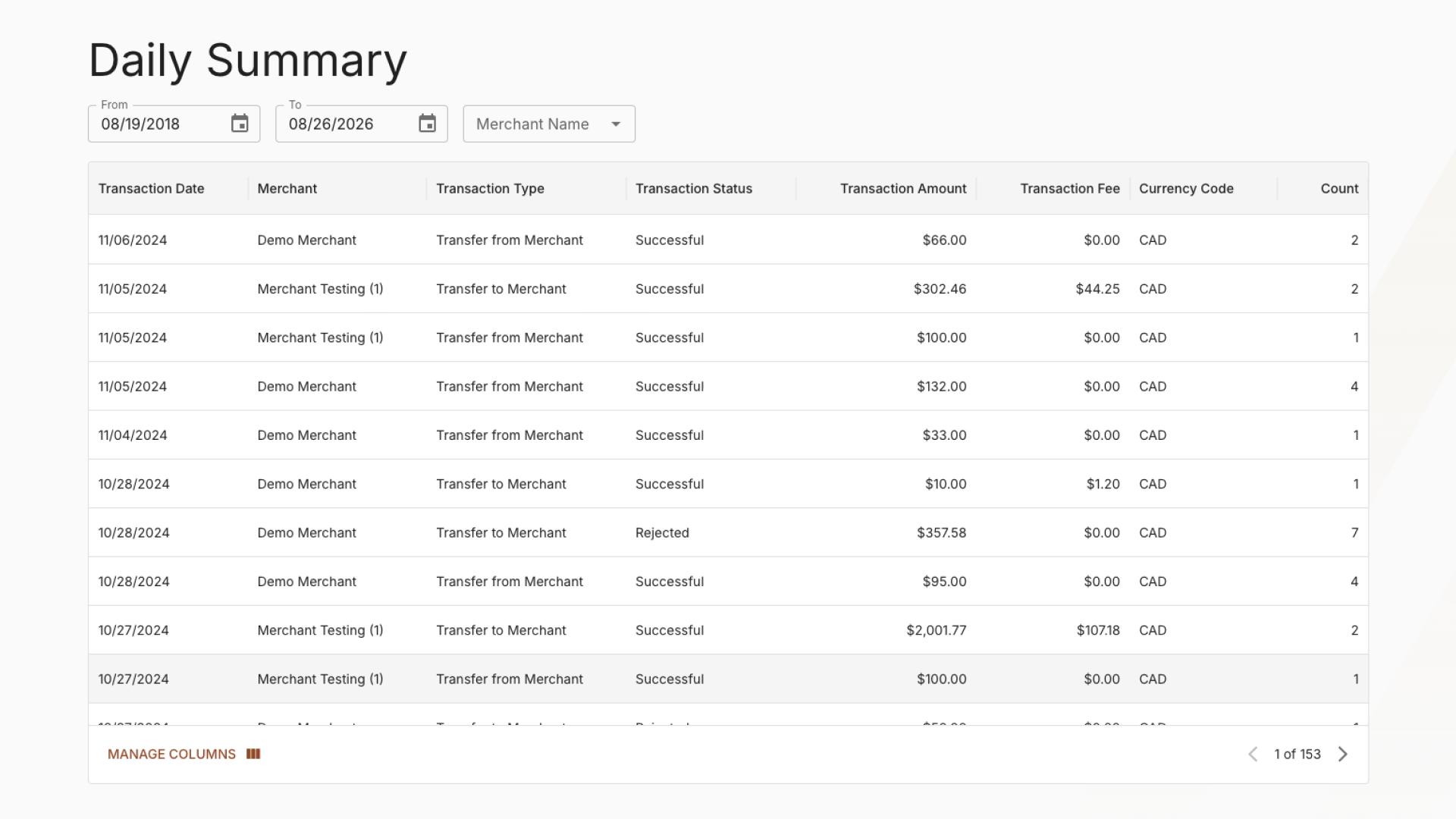
After migration: For all transaction after the migration this information will be shown under eCheck → Daily Balance. The main difference is that in the Daily Balance report each row corresponds to a day, and daily summaries by transaction type are contained in each column.
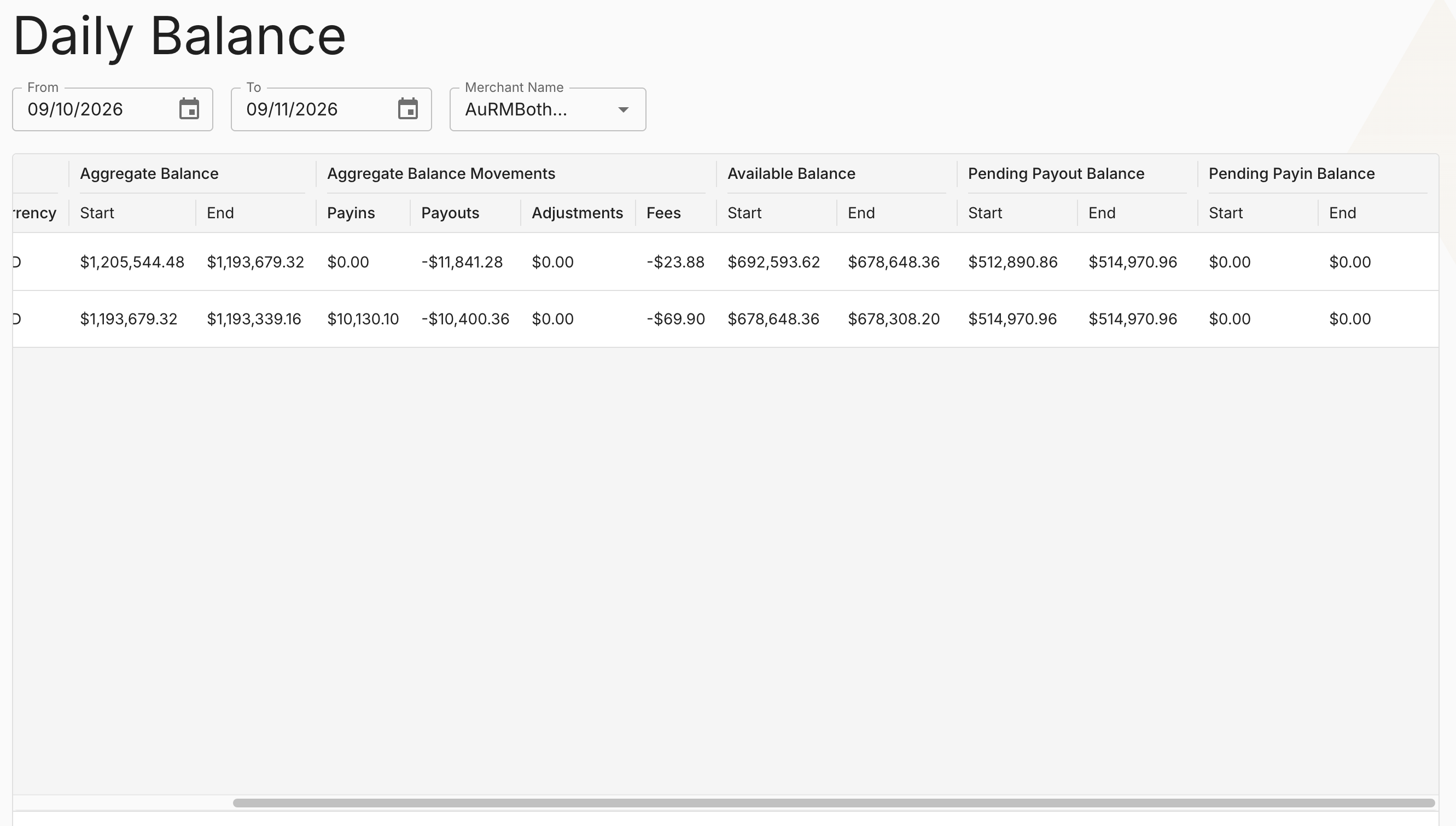
New daily balance page post migration
More information on this report can be found here
Account balance
In Instadebit you can view a merchant account’s current balance and settled funds across all categories, reflecting daily end-of-day settlement.
Information before migration: will be eCheck → Legacy Reports → Current Balance
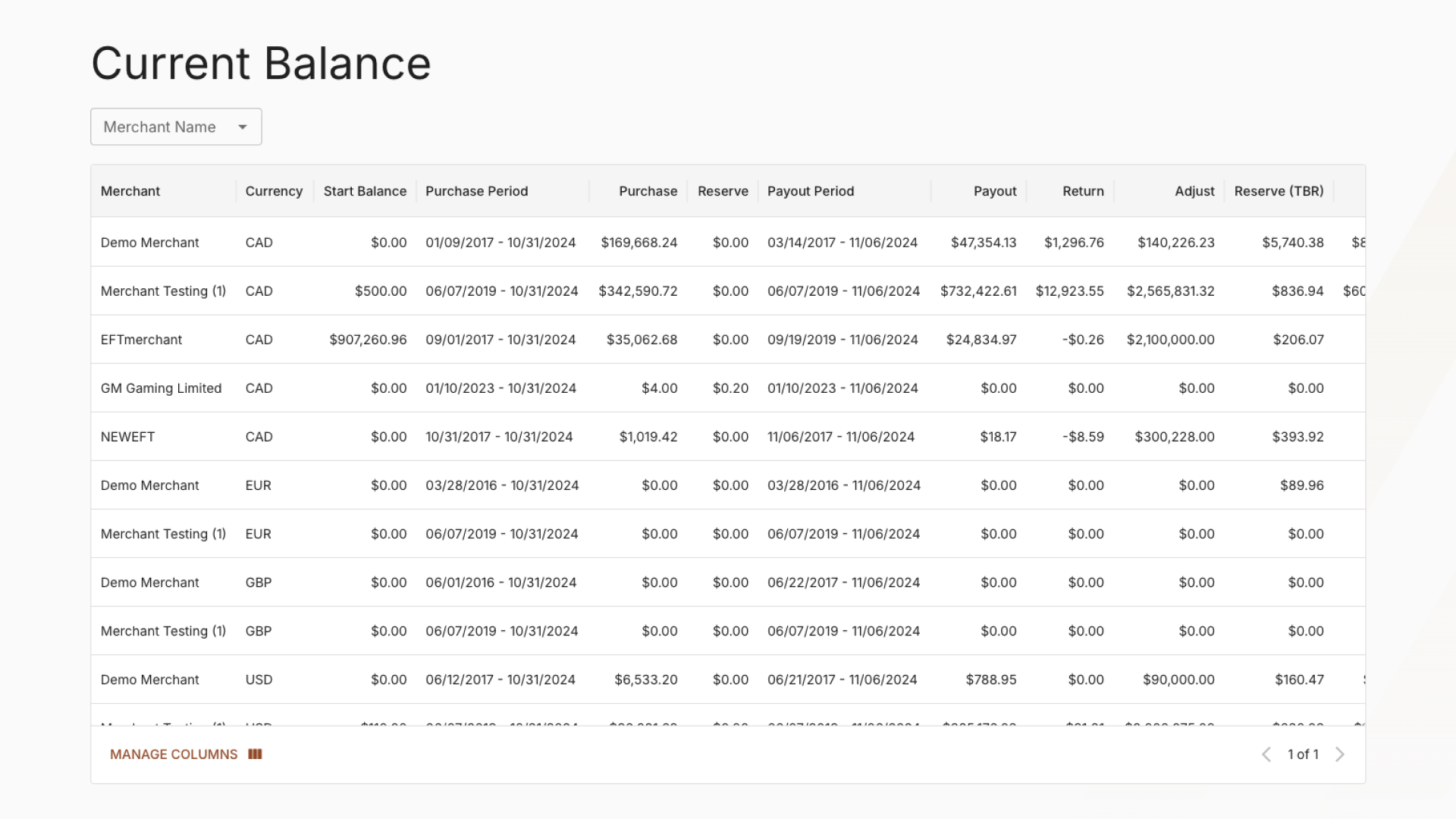
Current Balance page for historic pre migration merchant balances
After migration: This information will be shown under eCheck → Daily Balance
We are removing the Period columns and Reserves. Now it is all broken down by day, and not by PayIn Period and Payout Period.
We will be no longer using the concept of available balance, we will be displaying aggregate balance. The formula is as follows:
Aggregate End Balance - Aggregate Start Balance == Payins + Payouts + Adjustments + Fees
Payins include pending payins. Payouts include completed payouts only. Payouts and fees are negative.
More information on this report can be found here
Adjustments
In Instadebit you used the adjustment report to see history of adjustments to your account.
Information before migration: will be under eCheck → Legacy Reports → Adjustments
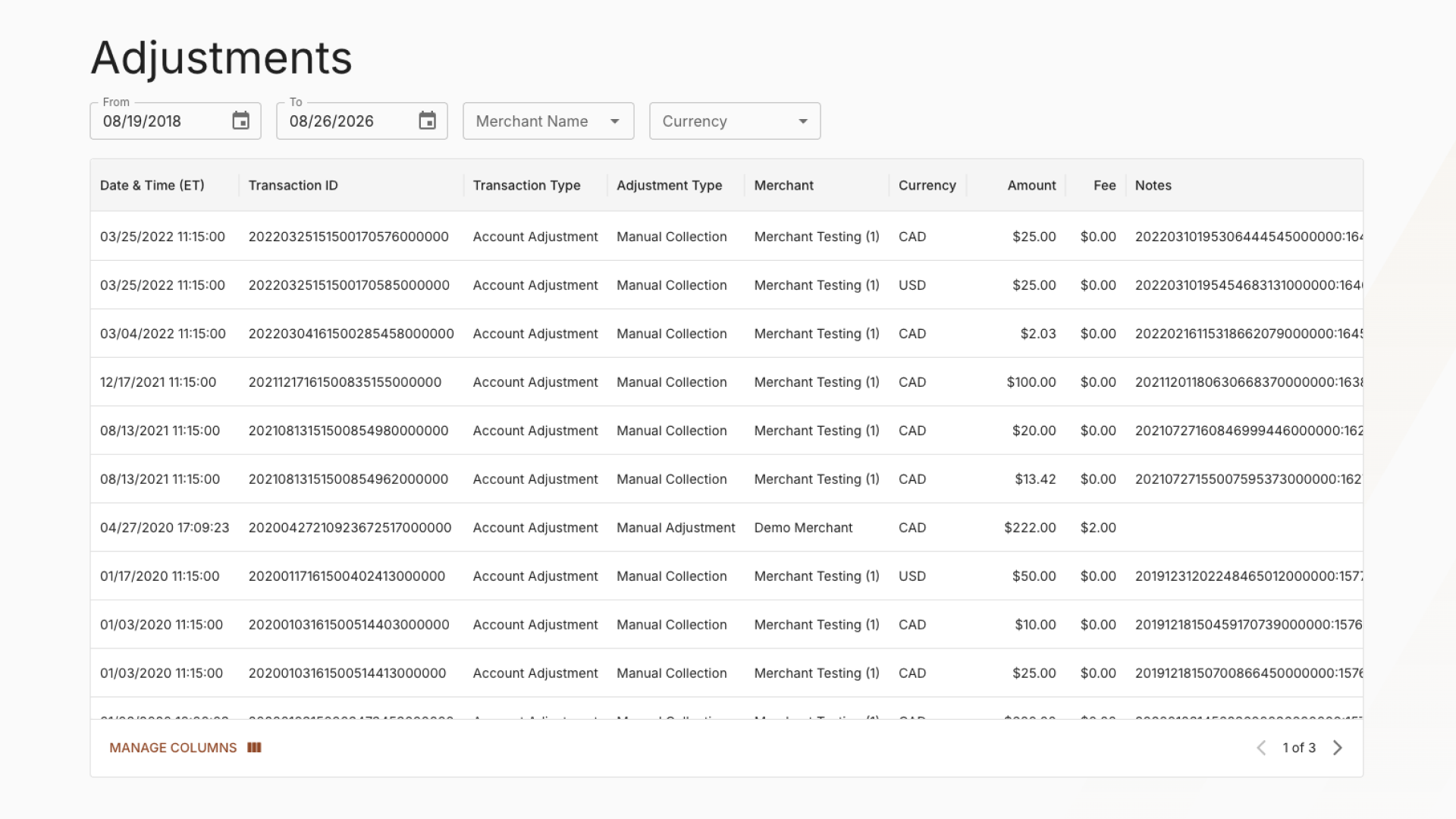
Adjustments page for historic pre migration adjustments
After migration: for all adjustments after will be using eCheck → Adjustments
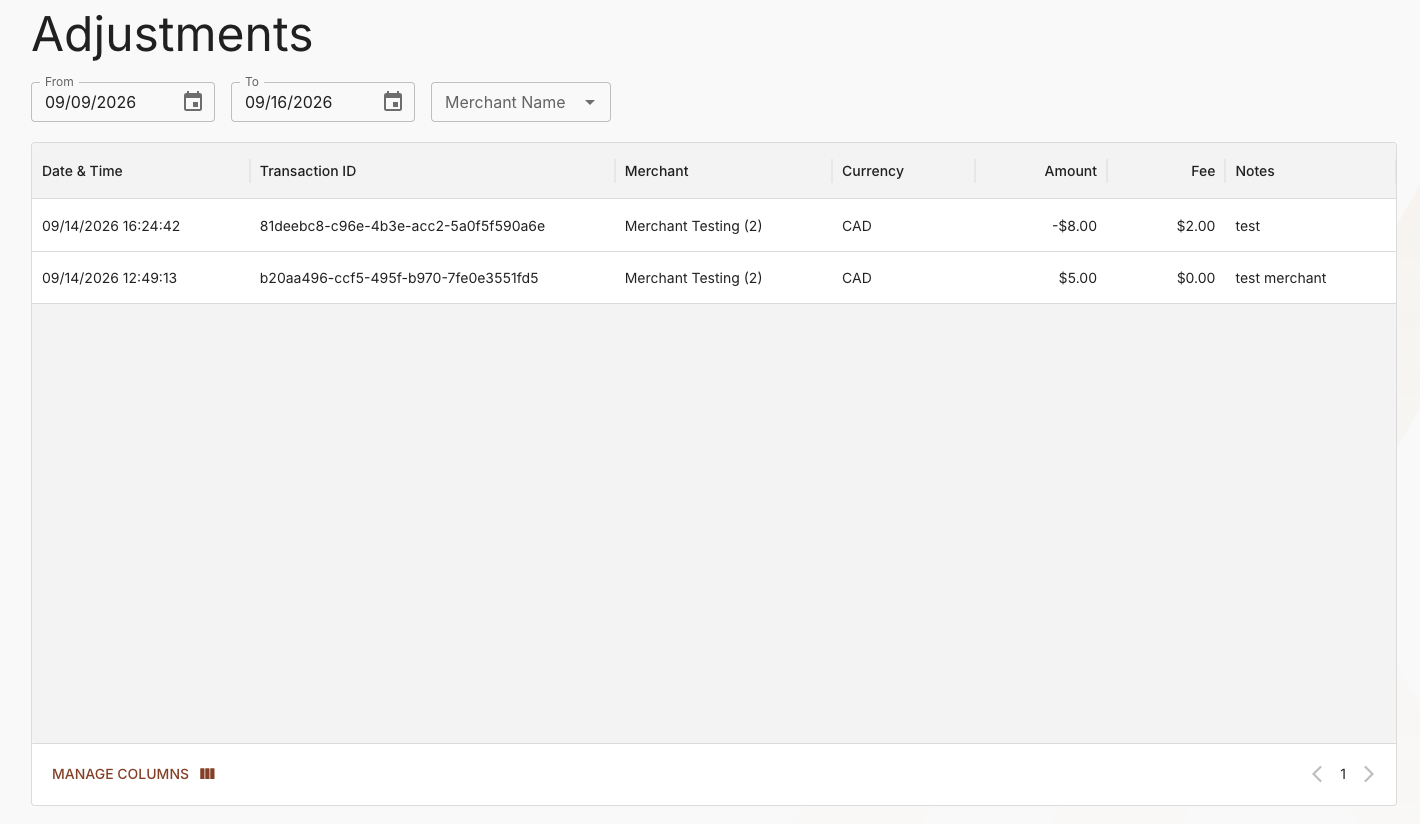
New adjustment page post migration
The new Adjustment report after migration will no longer have the following columns
- Adjustment Type (no longer provided)
- Transaction Type (all types are adjustments in this report)
Reimbursements
In Instadebit you used the reimbursement report to see the history of reimbursement to your account.
Information before migration: will be under eCheck → Legacy Reports → Reimbursements
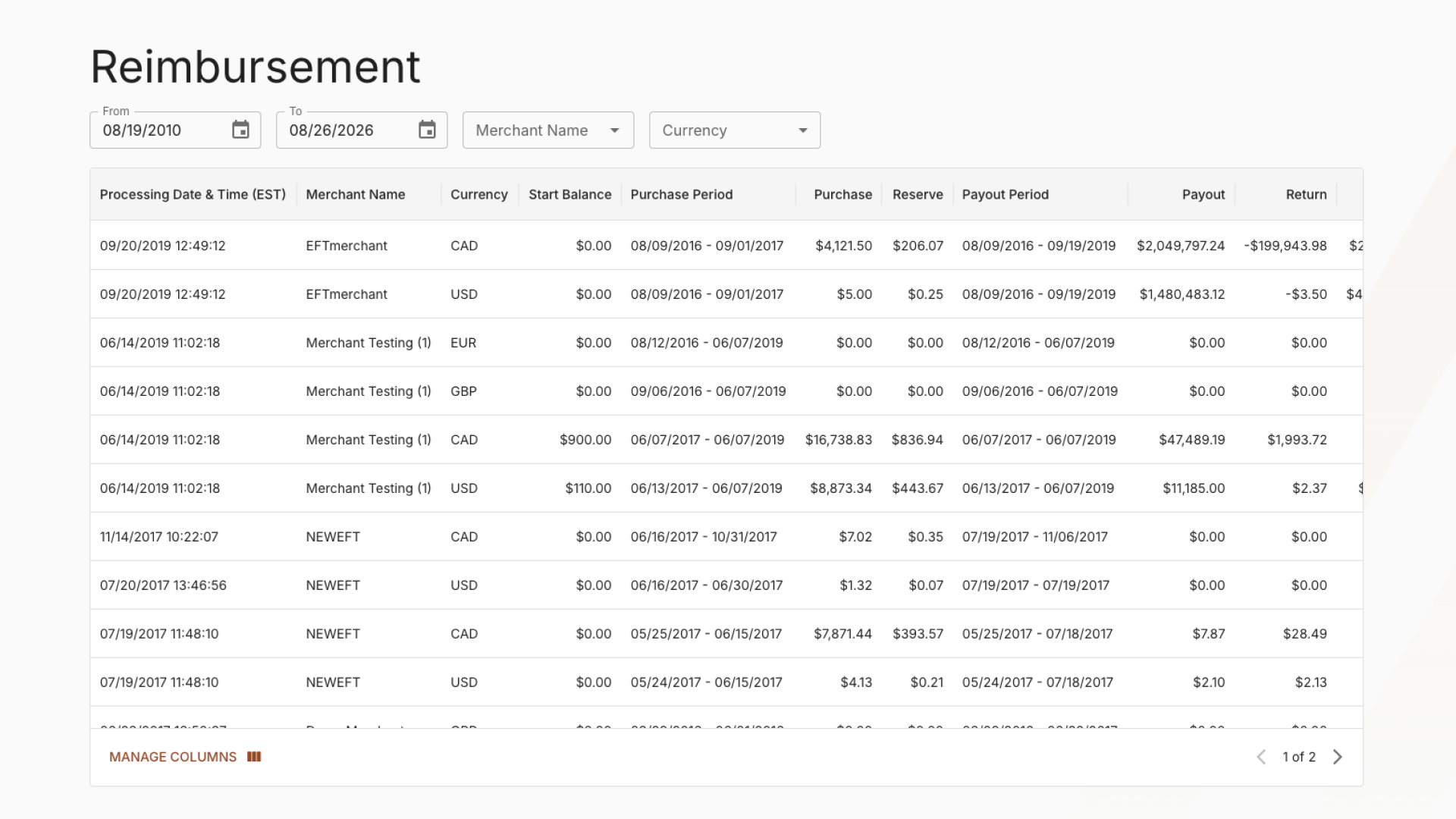
Reimbursement page for historic pre migration reimbursements
After migration: reimbursements are in eCheck → Settlements. In Instadebit, a reimbursement covered payins and payouts over a date range. After migration it is a single negative adjustment, not tied to a date range, and the report uses the same format as the Adjustments report.
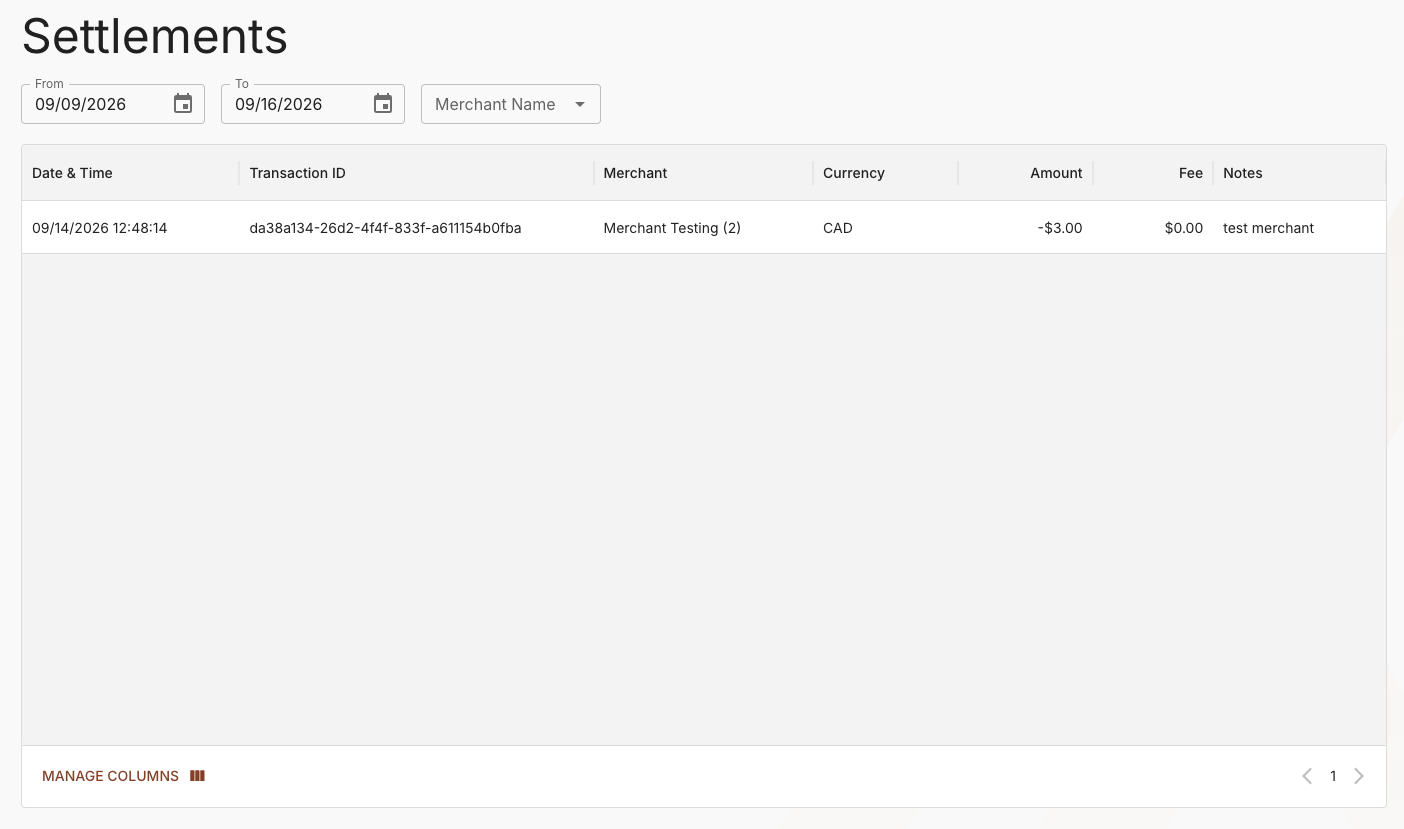
New settlement report for activity post migration
EFT VIP limits
You can no longer configure these after the migration date via a self-service tool. Any change must be communicated to our risk team at [email protected].
Merchant VIP
To add or change VIP, use the merchant configuration page.
Updated about 1 month ago