

Transaction Views
Overview
Transaction views is a table of your live payment and payout activity. Use it to find a transaction, filter a set of transactions, or export what you're looking at.
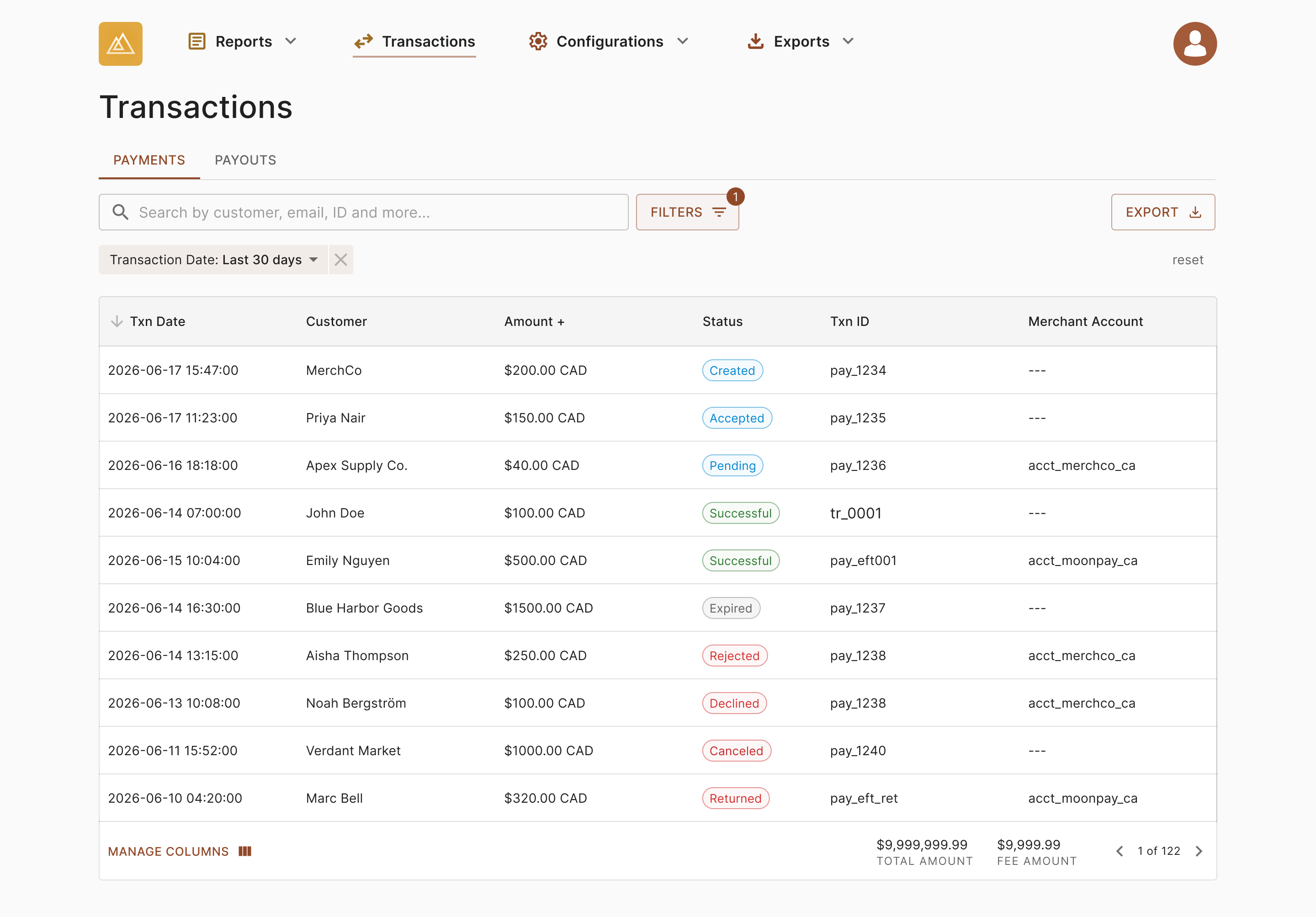
Example transaction view page
The table is split into two tabs:
- Payments: money in
- Payouts: money out
Both tabs work the same way and show the same columns. The footer shows the total amount and total fees for the transactions currently in view, so the numbers update as you filter.
Click any row to open its Transaction details page.
Columns
These columns are shown by default.
| Column | Definition |
|---|---|
| Created | When the transaction was created. Stored in UTC and displayed in your account's timezone. |
| Customer | The payer on a payment, or the recipient on a payout — shown as a personal or business name. Click it to filter the table to that customer's activity. |
| Amount | The transaction amount with its currency. |
| Status | Where the transaction is in its lifecycle. See Transaction details for what each status means. |
| Method | The payment method used to move the funds. |
| Transaction ID | The identifier assigned by Paramount Commerce. Quote this when contacting support. |
| Merchant account | The account the transaction belongs to. Hidden if you only have one account. |
Additional columns are available — see Manage columns.
Working with the table
Each column header offers the following, so you can shape the table without changing your filters:
- Sort: ascending or descending, toggled by clicking
- Pin: hold a column to the left or right while you scroll
- Hide: remove a column from the current view
- Manage columns: open the full column list
Hovering a cell lets you copy its value. Long values expand so you can read them in full. Use the footer to page through results.
Search
Search finds individual transactions when you already know something about them.
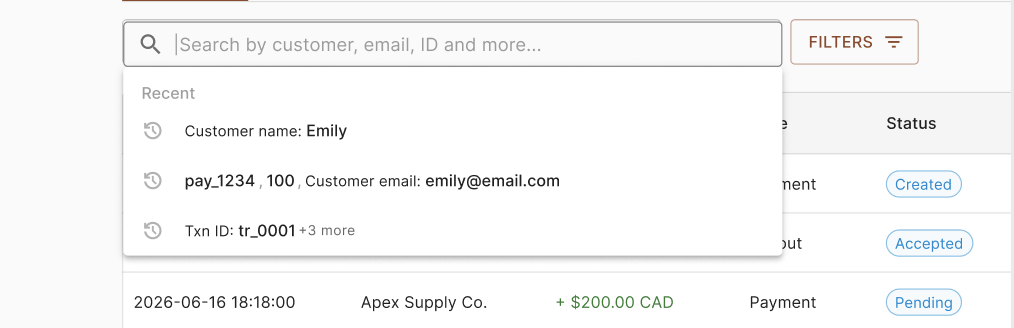
Example transaction view search
You can search by:
| Information type | What you can search by |
|---|---|
| Customer | The customer's name or business name, their contact details, and your own reference for that customer |
| Transaction | The Paramount Commerce transaction ID, your own transaction or order reference, customer transaction reference, and the transaction amount |
If you're looking for a group of transactions rather than one, use filters instead.
Filter
Filters narrow the table to a set of transactions. Filters combine, applying more than one narrows the results further. Export reflects whatever filters are active.
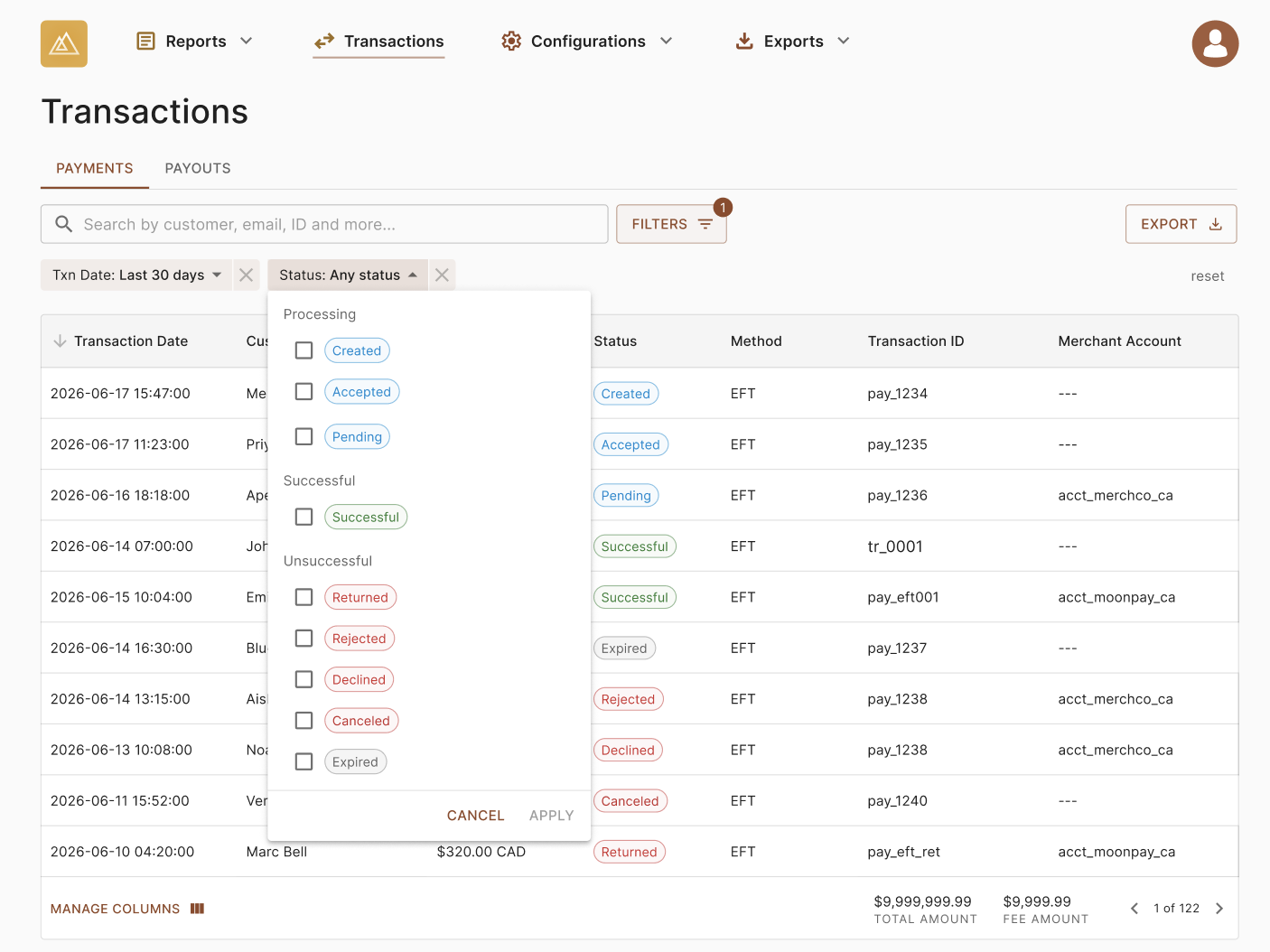
Example transaction view filters page
| Filter | What it does |
|---|---|
| Merchant account | Limits results to one or more of your merchant accounts. Only shown if you have more than one. |
| Status | Limits results to one or more statuses, grouped by outcome so you can select all successful or all unsuccessful activity at once. |
| Transaction date | Limits results by when the transaction was created. Choose a preset — today, the last 7 days, the last 30 days, the last 12 months — or set a custom range. |
| Error reason | Limits results to transactions that did not succeed, by reason. Searchable, and you can select more than one. |
Manage columns
You can add and remove columns to build a view that matches how you work. Your selection persists as you filter, and is carried into exports.
Select Manage columns, then search for or select the columns you want. Beyond the defaults, additional columns are available for:
- Customer information: contact details and your own customer reference
- Your references: the transaction or order references you supplied
- Payment details: the payment instrument used
- Outcome information: the reason a transaction did not succeed
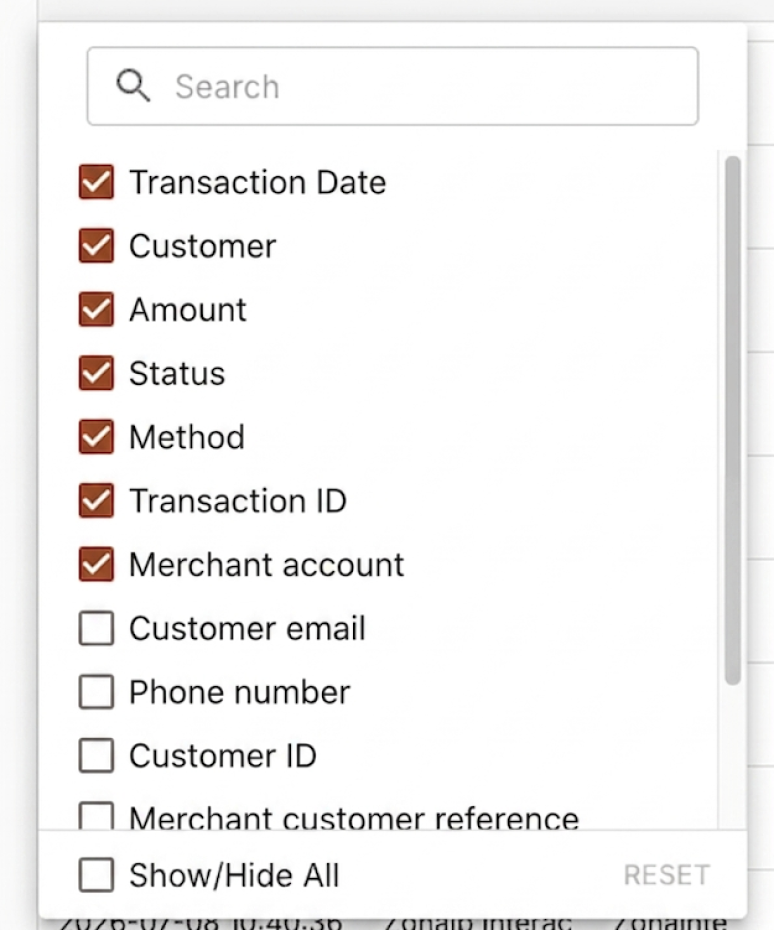
How to add/remove filters within a Transaction View
Updated about 2 months ago