

Creating Scheduled Report Exports
Overview
Streamline Your Report Generation with Scheduled Exports
We're excited to introduce a new enhancement that will allow merchants to schedule recurring report exports, making it easier than ever to automate and streamline your reporting workflows with the Merchant Portal!
Key Features
- Automated Report Generation - Save time by setting up recurring scheduled exports and eliminate the need to manually generate reports
- Customizable Filters - Apply specific filters to your scheduled exports to ensure that your automated exports only contain the most relevant data
- Flexible Scheduling - Choose a scheduling cadence for your exports that include daily, weekly, semi-monthly and monthly to align with your reporting needs
- Email Notifications - Receive email notifications with a download link as soon as your export is ready for download
Create a Scheduled Report Export
Merchants can set up recurring scheduled exports for all INTERAC and IBT reports they have access to based on their user role permissions.
- To schedule a recurring report export, navigate to the desired report
- Click on the new scheduler button to the right of the existing Export button
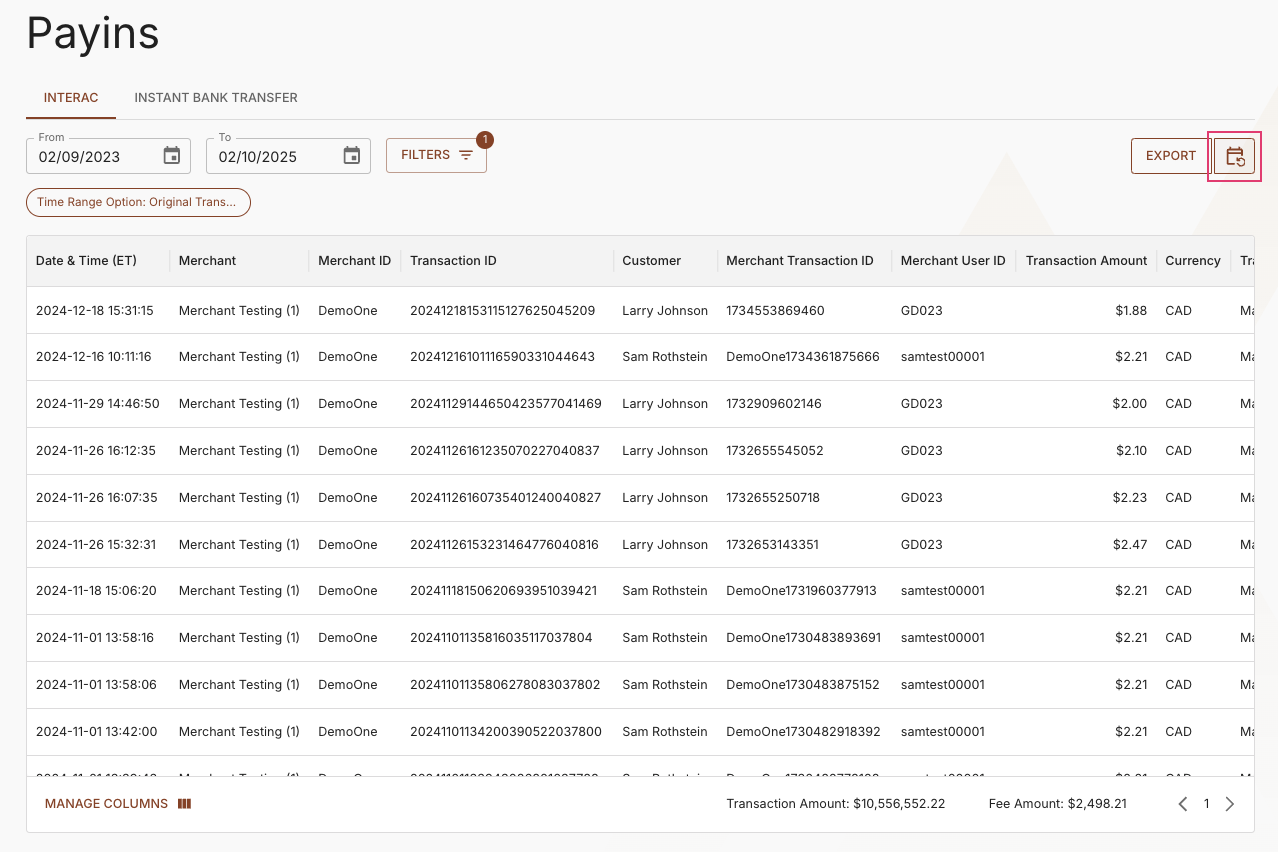
Recurring Exports "Scheduler" Button
- Once you've clicked the scheduler button, you will be presented with a multi-step modal that will guide you through the process of creating a scheduled export
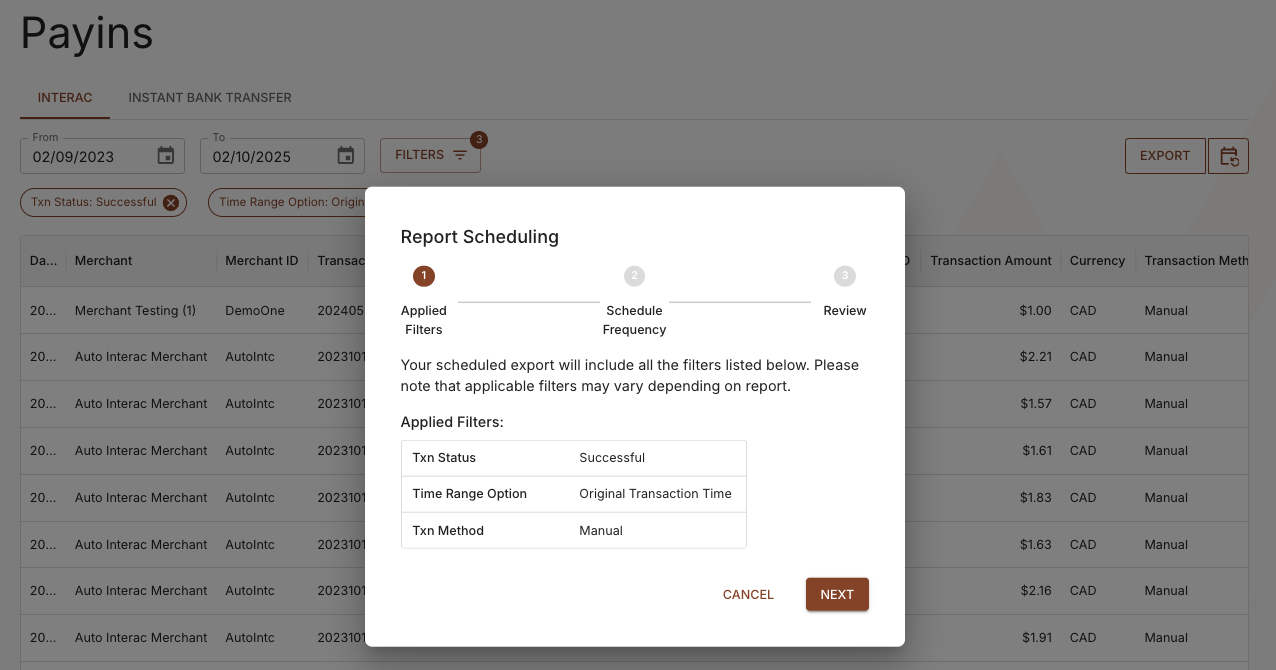
Scheduled Exports Modal > Step 1: Review Applied Filters
- The first step in creating a scheduled export is to review your filters, as they will apply to all recurring exports generated for this schedule. Below is a complete list of available filters for each report that can be applied to your scheduled export.
INTERAC Reports
| Report | Available Filters |
|---|---|
| Daily Summary | Txn Status Txn Type Merchant Name |
| Adjustments | Adjustment Type Merchant Name |
| Disbursements | Merchant Name |
| Payins & Payouts | Txn Status Time Range Option Merchant Name Txn Method |
| Returns | Txn Status Merchant Name |
IBT Reports
| Report | Available Filters |
|---|---|
| Daily Summary | Txn Status Txn Type Merchant Name |
| Adjustments | Adjustment Type Merchant Name |
| Disbursements | Merchant Name |
| Payins & Payouts | Txn Status Merchant Name |
| Returns | Time Range Option Txn Type Next Action Merchant Name |
| IBT Representment | Txn Region Merchant Name |
| Identity Verification | Merchant Name Verification Status Notification Status Product |
- The second step in creating your scheduled export is to select the frequency, ie. how often you'd like to receive the recurring report export
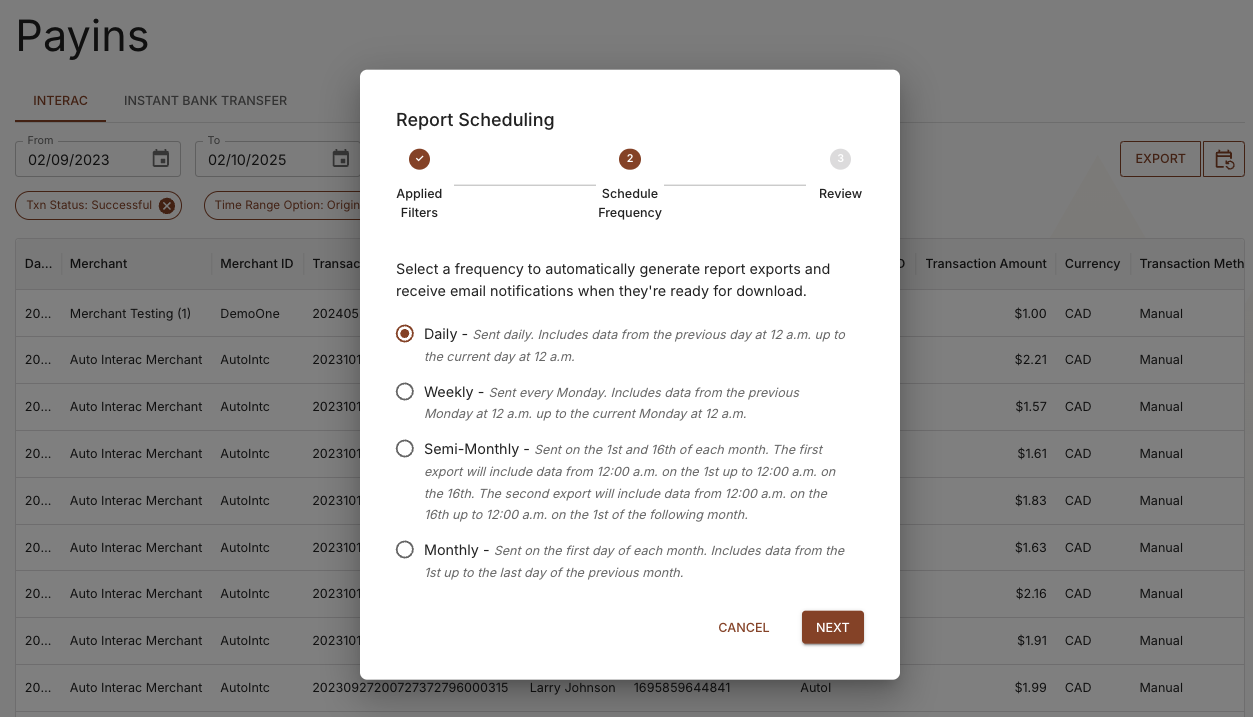
Scheduled Exports Modal > Step 2: Select Schedule Frequency
Merchants can choose one of the following scheduling options:
| Frequency | When is the Export Sent to Me? | What is the Date Range for the Included Data? |
|---|---|---|
| Daily | Sent daily (AM) | Includes data from the previous day at 12am up to the current day at 12am |
| Weekly | Sent every Monday (AM) | Includes data from the previous Monday at 12am up to the current Monday at 12am |
| Semi-Monthly | Sent on the 16th of the current month and the 1st of the following month (AM) | The first export will include data from 12am on the 1st up to 12am on the 16th The second export will include data from 12am on the 16th up to 12am on the 1st of the following month |
| Monthly | Sent on the 1st day of each new month (AM) | Includes data from the 1st up to the last day of the previous month |
- After selecting your export frequency, the final step is to review your filters and frequency before confirming the creation of your scheduled export
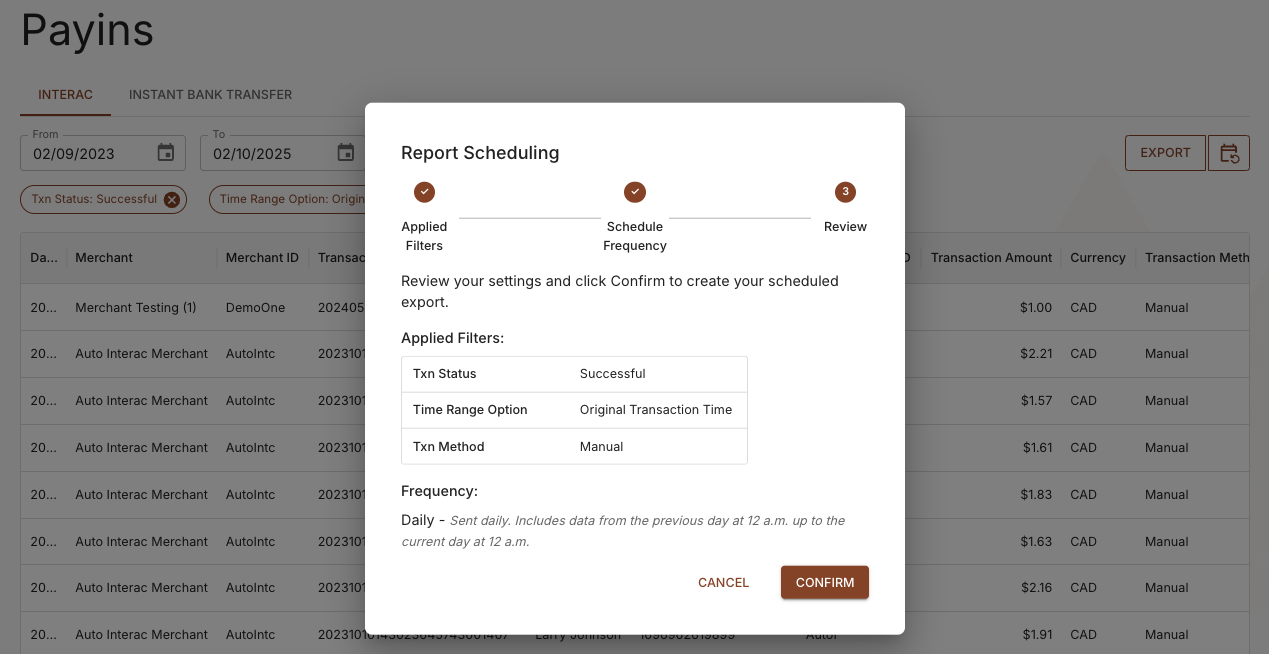
Scheduled Exports Modal > Step 3: Review Applied Filters and Frequency
- Once you click the Confirm button, you'll see a notification confirming that your scheduled export has been successfully created
Download Your Scheduled Report Export
Once a scheduled export has been generated, merchants will receive a notification email letting them know that their export is ready for download in the Portal. Report exports are not sent as email attachments but can be accessed directly from the Exports History page or by clicking the link in the notification email.
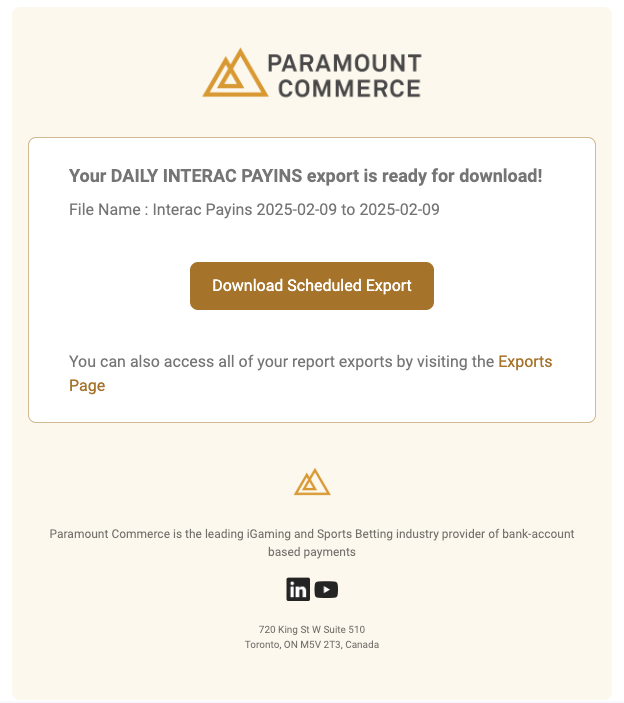
Scheduled Exports Notification Email
If a merchant clicks the link in the notification email while logged into the Merchant Portal, they'll be redirected to their Exports History page and the scheduled export will begin downloading automatically
Manage Your Scheduled Exports
We've created a new page under the Exports tab called the Schedules Management page where users within the same organization can view all scheduled recurring exports. From this page, you can easily edit schedules, download the most recent exports, and delete schedules as needed.
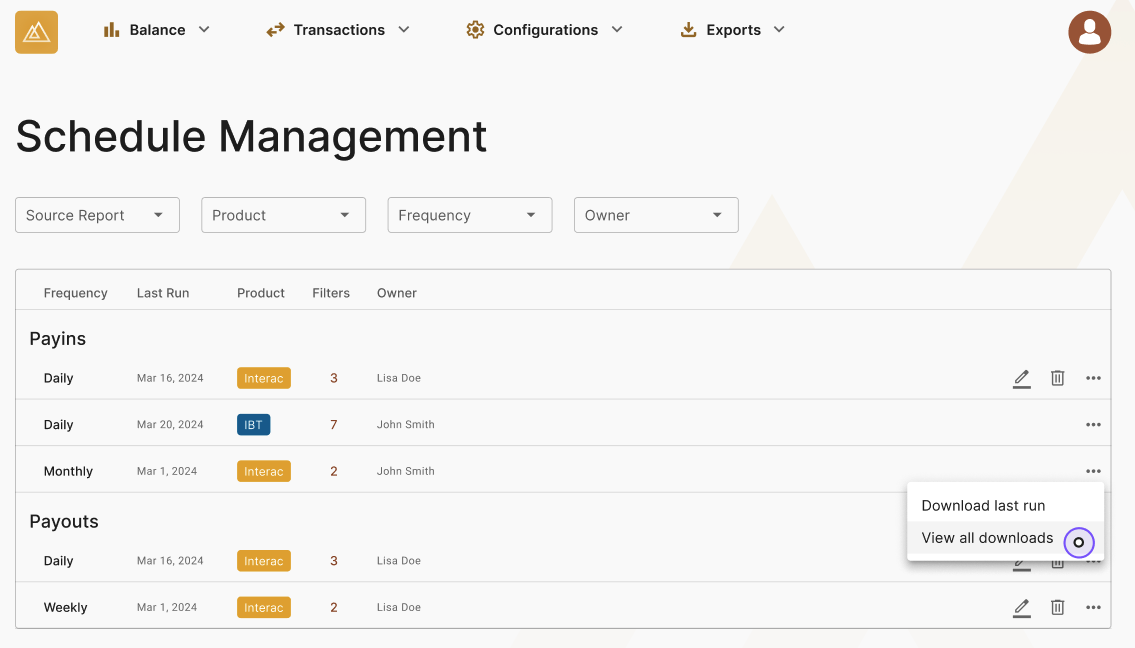
Schedule Management Page
Note: Only the owner / creator of a scheduled export and users with Admin-level permissions can edit the export's frequency or delete it.
Frequently Asked Questions
For additional information not covered in this how-to guide, you can visit the Scheduled Report Exports FAQs page.
Updated about 1 year ago