

Exporting Reports
Overview
Paramount Commerce's new and enhanced exporting feature enables merchants to asynchronously export multiple transaction reports simultaneously, with support for up to 500,000 records per export. Merchants will receive real-time progress updates directly within the portal and can access all exports generated by users in their organization from their exports repository page.
Currently, this feature only supports the creation of exports in CSV format.
Create a Report Export
Depending on your user role and permissions, you can create exports for any reports you have access to.
- Select a report you would like to export
- Narrow down your report by date range and select any filters you would like to apply
- When you are ready, click the Export button
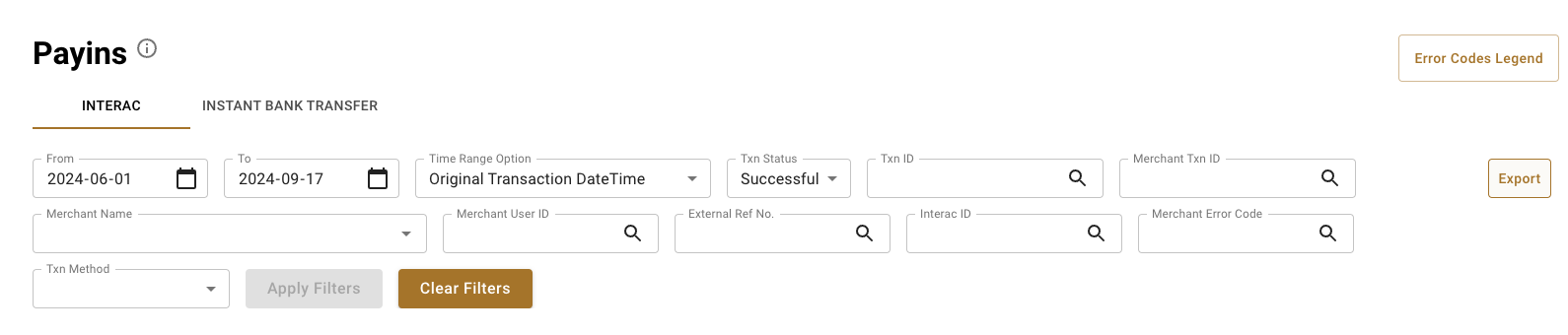
INTERAC Payins Report
- With asynchronous exporting, you can generate multiple exports at a time and continue to navigate the portal while your exports compile in the background
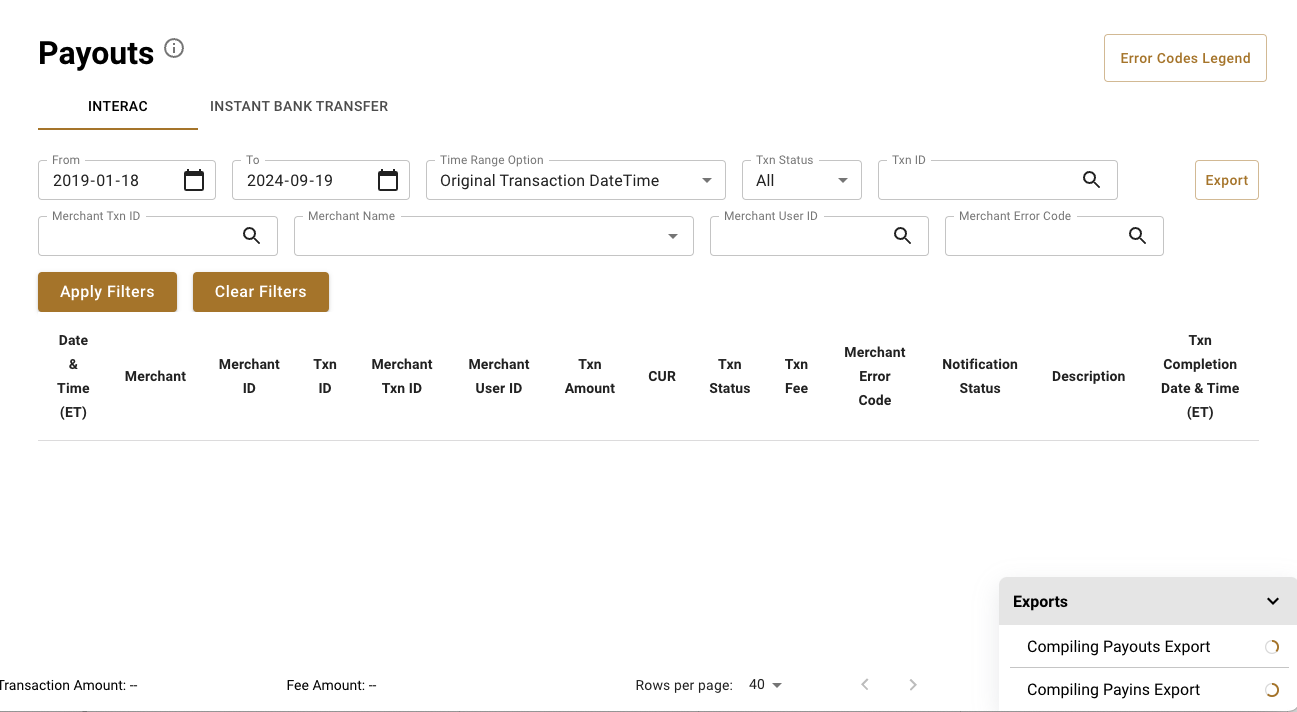
Freely Navigate the Portal While Your Exports Compile in the Background
- When your export is ready, you will see the status change in the download drawer and the export will begin the browser download automatically
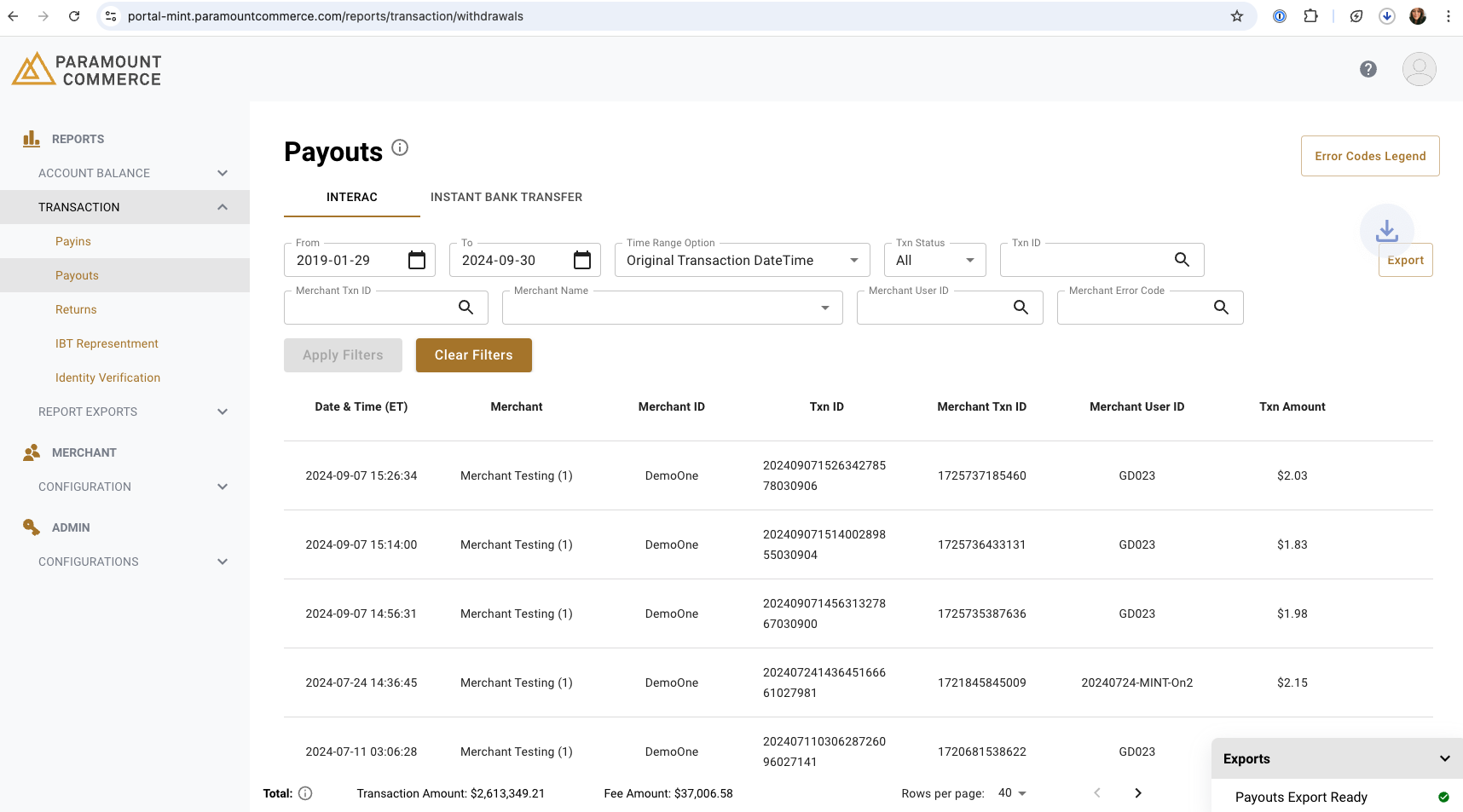
Export Compilation Completed & Browser Download Begins
View "Export Ready" Notification Email
- Once your export is compiled and ready for download, you will receive an email notification
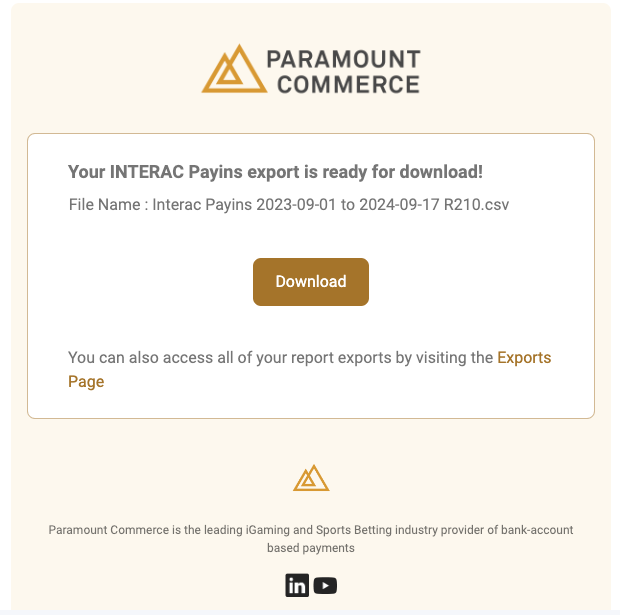
Report Export Notification Email
- When you click the Download button, you will be redirected to the Exports page and your download will begin automatically
View Your Exports
NoteUsers within your organization will only see the type of report exports their user role and permissions permits. Only successfully created exports will appear on your Exports page.
A new Exports page has been created to serve as a centralized repository for all report exports created by you and your team. It will allow you to easily review, manage and re-download any report exported by your team within the past year.
- To view the Exports page, go to Report Exports > Exports
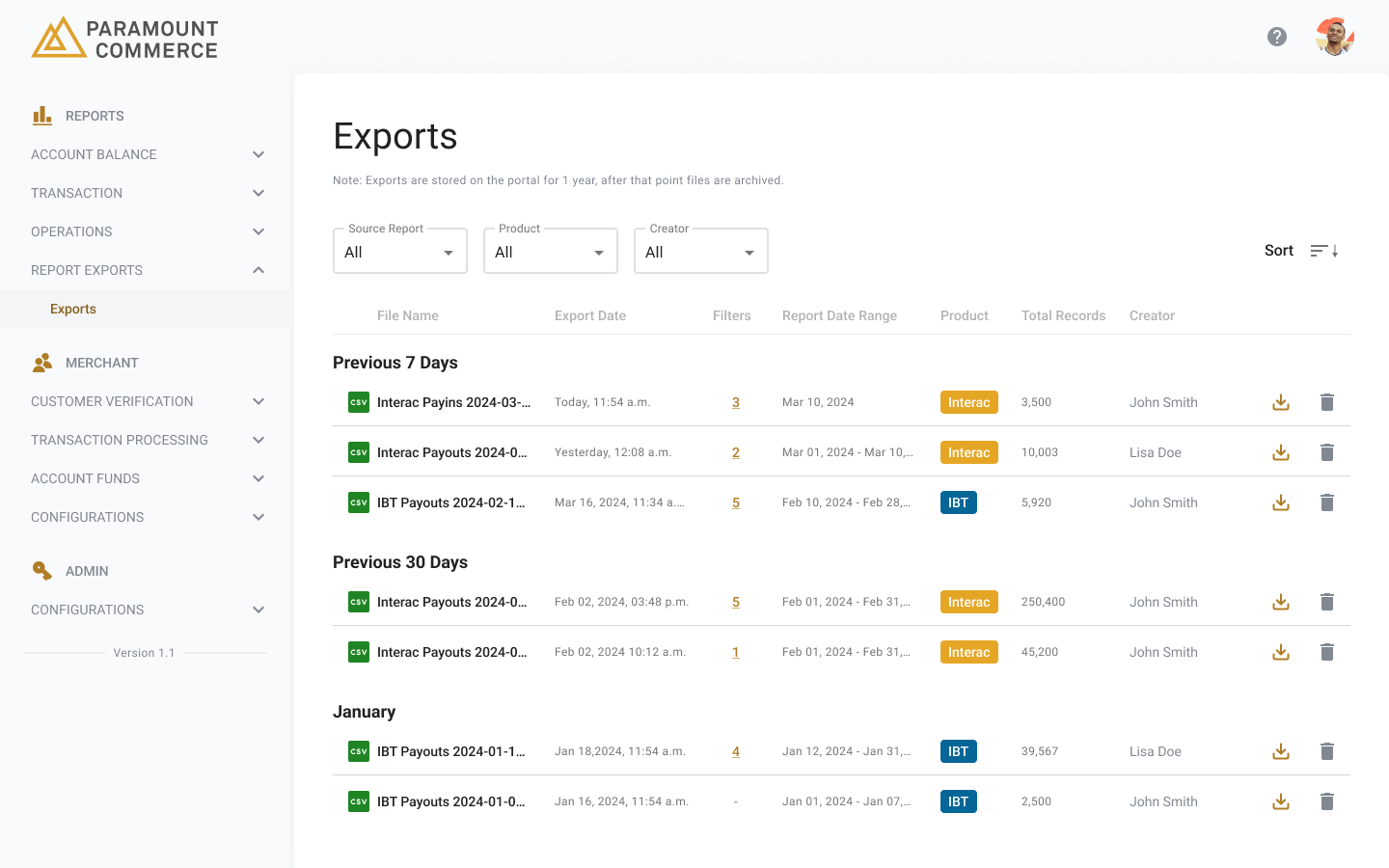
Exports Page
- The Exports page contains the following information for each export:
| Column | Description |
|---|---|
| File Name | An export is assigned a file name using the following naming convention: {Product}{Source Report}{Report Date Range} |
| Export Date | The date and time the export was created (always displayed in EST) |
| Filters | Displays the number of filters applied when the export was generated. If you click on the number, you will be presented with a modal showing all of the filters that were applied |
| Report Date Range | Displays the "From" and "To" date range selected for the export |
| Product | Displays which product the export was generated for |
| Total Records | Total number of transaction records included in the export |
| Creator | User within your organization that initiated the export |
- Your exports will be organized based on the following export creation date buckets:
- Last 7 Days
- Last 30 Days (up to the start of the previous full month)
- By Month
- By Year
- In order to easily find an export that you are looking for, you can narrow down the list of exports based on Report, Product and Creator
- You can also sort your list of exports by Export Date and Report Date in ascending / descending order
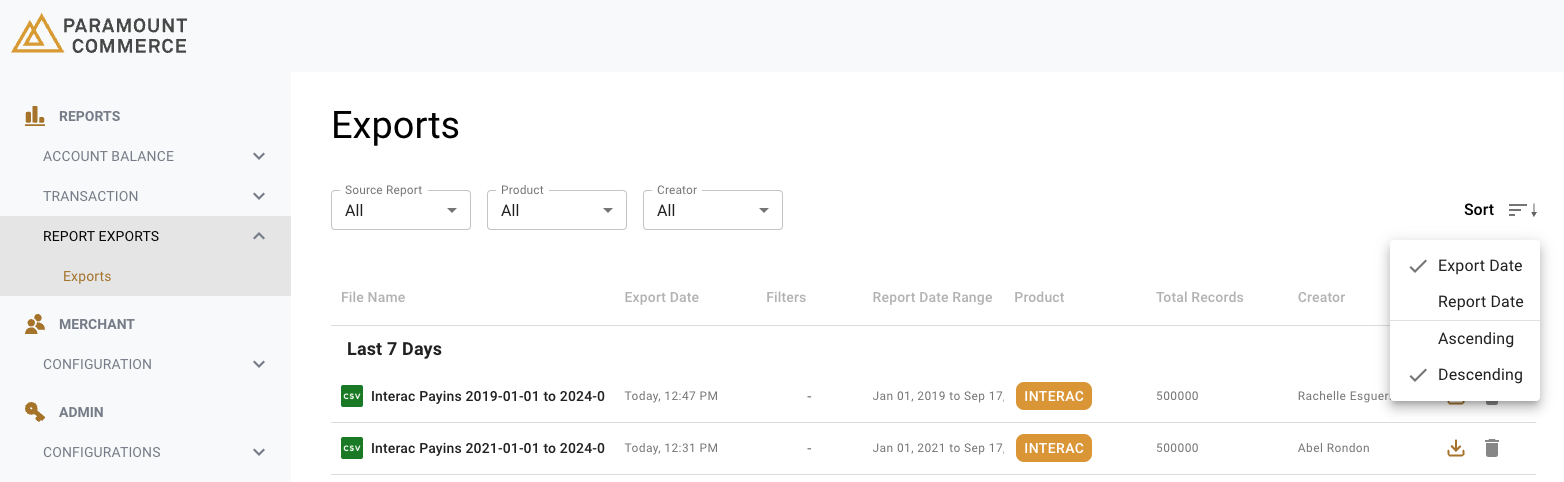
Exports Page > Sorting
- If you are an Admin level user, you will be able to delete exports made by any team member within your organization, otherwise, non-Admin level users can only delete exports they have created
Frequently Asked Questions (FAQs)
For additional information not covered in this how-to guide, you can visit the Viewing & Exporting Reports FAQs page.
Updated about 1 year ago