

IP Whitelist: Unlock Testing Access for Interac Payments
When to Use this Feature:
- If you are a new merchant integrating with our Interac solution
- If you are an existing merchant and need to maintain ongoing access to our MINT environment Interac Payments APIs for development and testing purposes
Overview
This guide explains how to use the IP Whitelist feature within your Merchant Portal's MINT environment instance. By whitelisting specific IP addresses, you can ensure that designated users or systems can access the Interac Payments API for integration and testing purposes.
How it Works
The IP Whitelist feature functions by checking the incoming IP address of any request attempting to access https://staging.paydirectnow.com/consumer/interacGateway.do and compares it against a list of approved IP addresses you've provided.
Step 1: Access the IP Whitelist Page
Note: Only Admin and Operations level users will have access to this feature
- Sign into your Merchant Portal's MINT instance: https://portal-mint.paramountcommerce.com/login
- Navigate to the Configurations tab and click the Network Access Management option in the dropdown
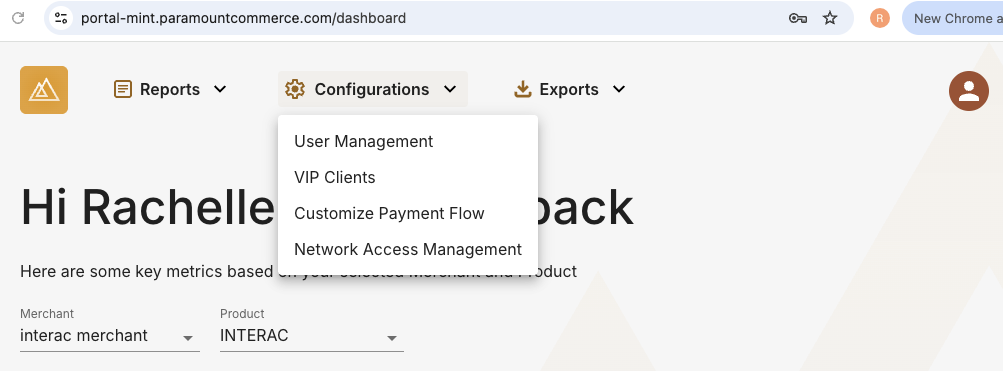
Navigation: Configurations > Network Access Management
Step 2: Add an IP Address
- Click the Add IP + button
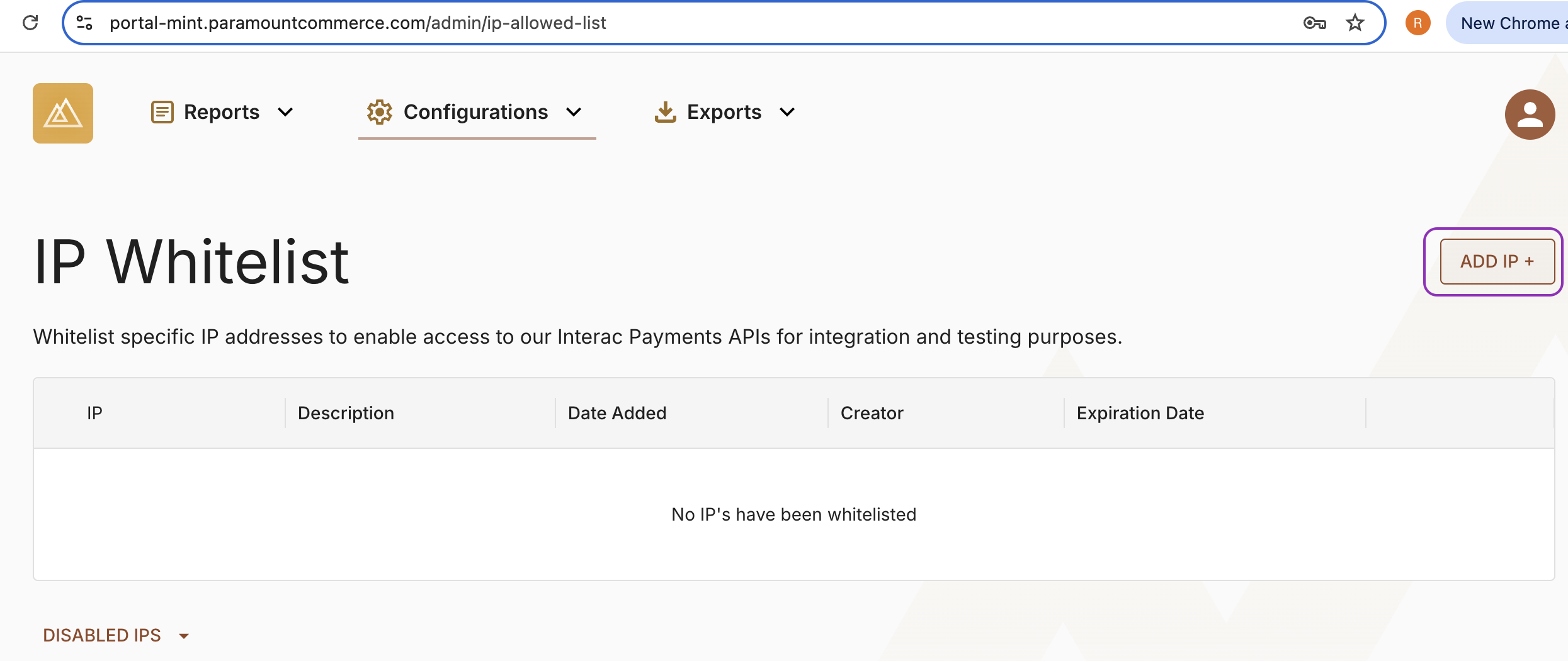
IP Whitelist Page
- Enter in the IP address you would like to whitelist and a brief description to help you identify the IP
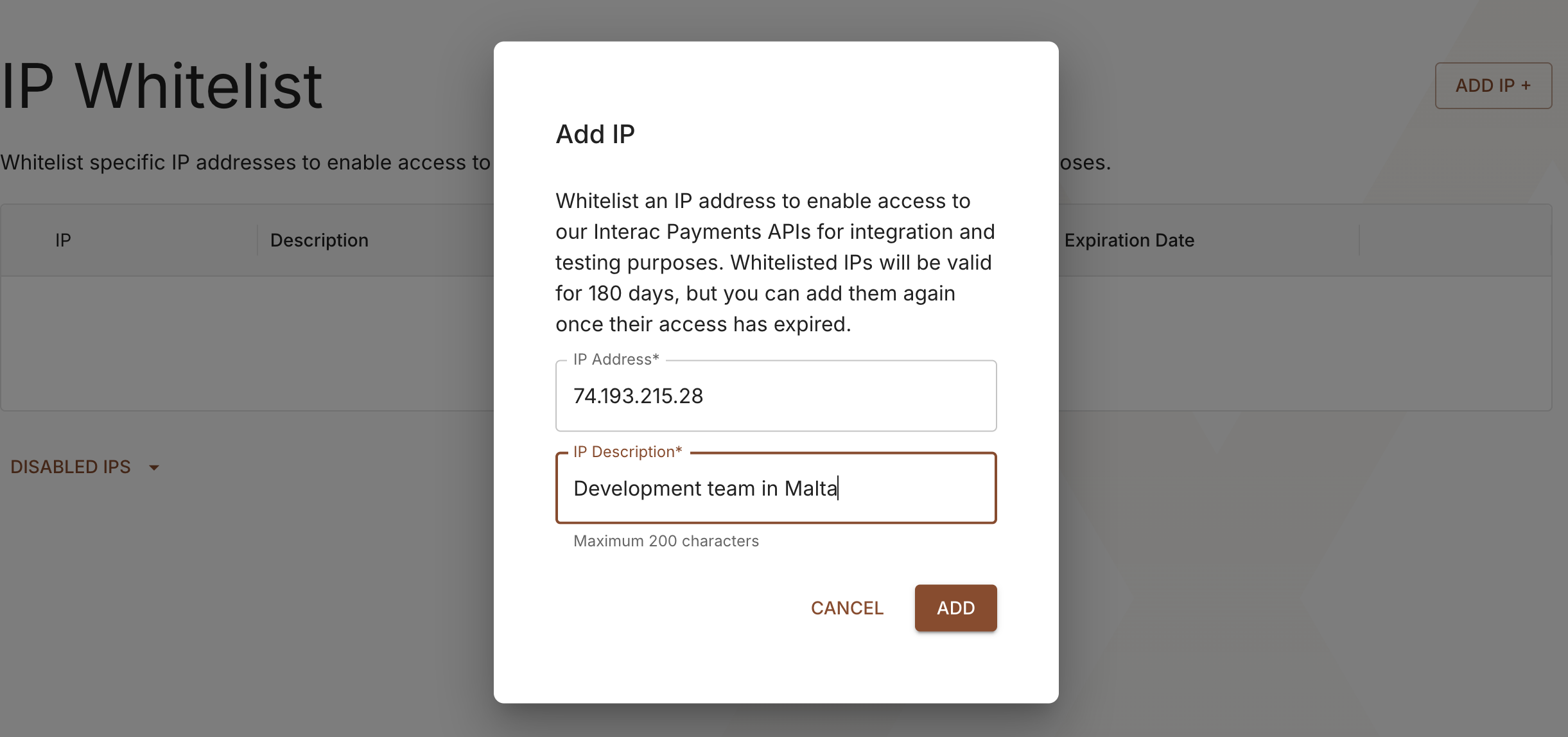
Add IP Address Modal
- A green toast will appear confirming that you've successfully added the IP address to your whitelist
Review Whitelisted IPs
- Your list of whitelisted IPs will display the following:
- IP address
- IP description
- Date the IP address was whitelisted
- Name of the user who whitelisted the IP address
- Expiry date of the whitelisted IP (date which the IP address will be removed from the list of whitelisted IPs)
- Delete icon (only visible to an Admin level user and the user who originally added the IP address)
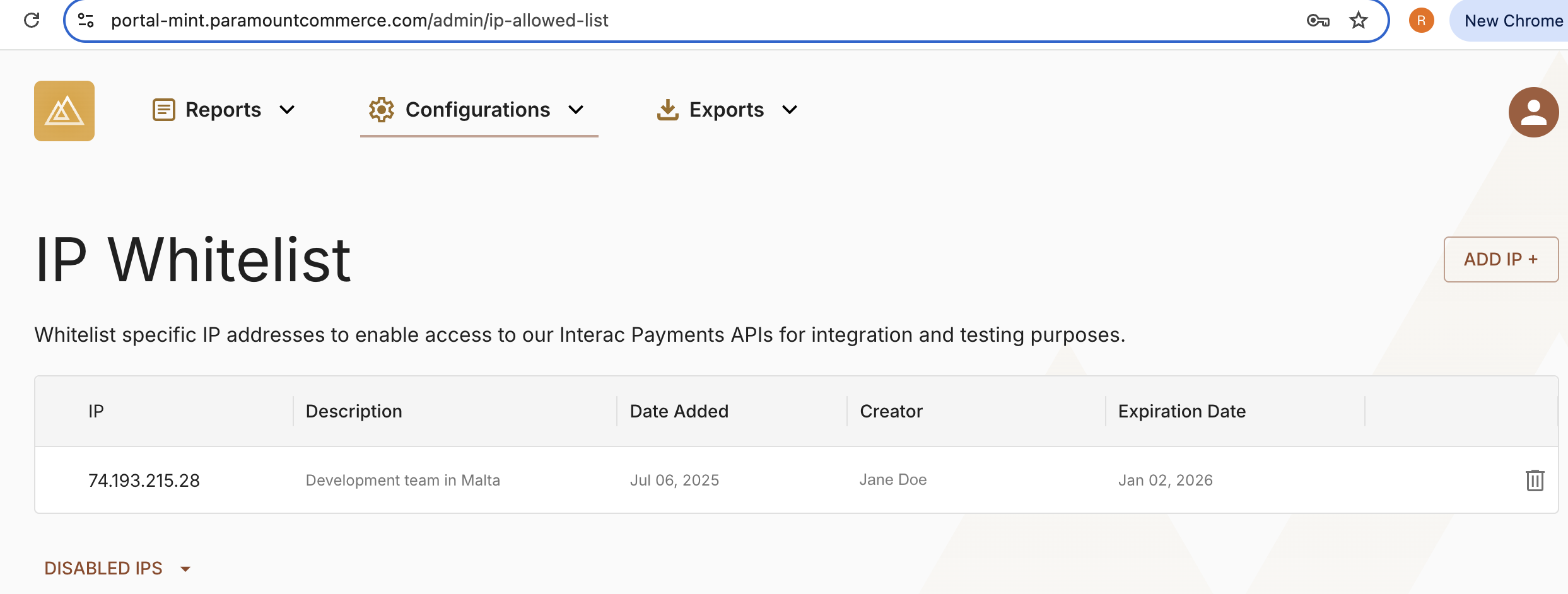
List of Whitelisted IPs
Remove an IP Address
- Click the trash icon next to the IP address you wish to remove from your whitelist
- Click the Confirm button to remove the IP
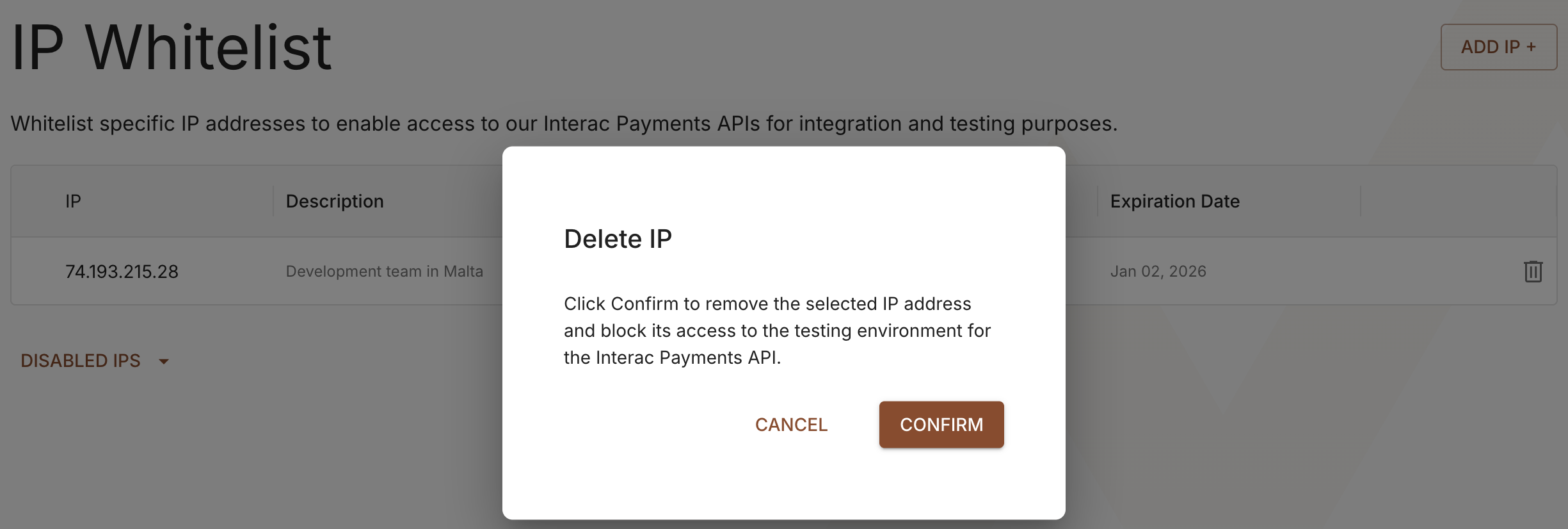
Delete IP Address Modal
- A green toast will appear confirming that you've successfully removed the IP address from your whitelist
Frequently Asked Questions (FAQs)
For additional information not covered in this how-to guide, you can visit the IP Whitelist FAQs page.
Updated about 1 year ago