

INTERAC Brand Requirements
INTERAC Brand Requirements
The INTERAC® Brand Requirements Guide is designed to support Merchants during integration of the Paramount Commerce INTERAC product. It includes implementation guidelines to maximize conversion and ensure an optimal experience for Consumers transacting with the product on a Merchant’s site. A sample checklist summarizing the recommendations is included at the end of this document.
This document includes recommendations for how best to position INTERAC on your cashier and withdrawal screens, including appropriate transaction messaging.
Contact [email protected] if you have any questions about the contents of this guide or to request customized recommendations or logos for your site.
About PayDirectPayDirect is Paramount’s consumer-facing brand for INTERAC payments. The PayDirect customer support team will support consumers using the product. However, Paramount’s Account Management, Operations, and Business Customer Support teams will support Merchants and Partners with the product.
Cashier Logo Specifications
Logo & Presentation































Logo Aspect Ratios
There is a wide variety of Merchant cashiers, and each one displays logos in a specific way. The INTERAC logo responds to different aspect ratios (Rectangular or Square) and sizes (Extra Small, Small, Medium, Large).
| Rectangular The text Instant transfers from all Canadian banks. is part of the graphic asset. | 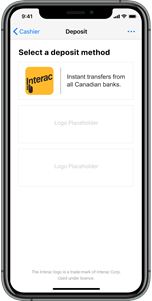 |
| Square The text Instant transfers from all Canadian banks. is displayed as text along the square version of the logo. | 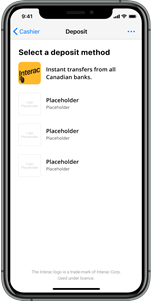 |
Rectangular Aspect Ratio
Use the asset version that best matches the logo height in the Merchant’s cashier:
| Image | Height |
|---|---|
 | Large Height is 92+ pts |
 | Medium Height is 64+ and less than 92pt |
 | Small Height is 32+ and less than 64pt |
 | Alternative small (width constrained) Height is 32+ and less than 64pt |
 | Extra Small Height is 24+ and less than 32pt |
Square Aspect Ratio
Use the asset version that best matches the logo height in the Merchant’s cashier:
| Image | Height |
|---|---|
 | Large Height is 92+ pts |
 | Medium Height is 64+ and less than 92pt |
 | Small Height is 32+ and less than 64pt |
 | Extra Small Height is 24+ and less than 32pt |
Text
When the cashier logo is square, the image asset shows only the INTERAC logo. The part Instant transfers from all Canadian banks. is displayed by text.

Custom Assets
Contact the Sales or Product Design Team if you feel that none of the provided assets perfectly fits your cashier. We'll be more than happy to provide a custom asset. What we need to know:
- Which image format you use (PNG, JPG, SVG)
- Which size or aspect ratio is used in your cashier screen
- What's the average size in pixels for your other logos?
- Optional: Do you apply any specific effect to the logos?
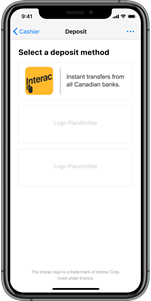
Example Cashier Layouts
 | 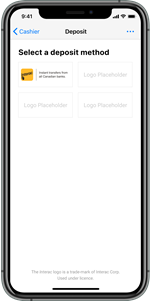 |
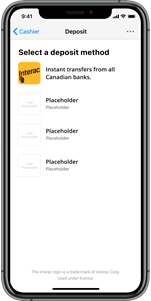 | 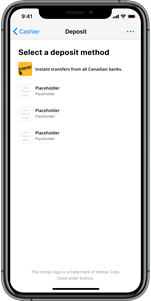 |
Cashier Copy
We recommend that Merchants explain to customers what the INTERAC product is and what information they'll need to complete a transaction before directing them to the INTERAC screens.
INTERAC Payments
Logo & Name
Merchants display the INTERAC logo and text (Instant transfers from all Canadian banks.) on their cashier.
The Paramount Commerce name and logo should not be displayed to customers at any time.
Legal Disclaimer
When using the INTERAC logo, the following legal disclaimer must be used on the cashier:
The INTERAC logo is a trade-mark of INTERAC Corp. Used under license.
When using the INTERAC wordmark, the following legal disclaimer must be used on the cashier:
INTERAC is a registered trade-mark of INTERAC Corp. Used under license.
When using the INTERAC logo and the INTERAC wordmark, the following legal disclaimer must be used on the cashier:
INTERAC is a registered trade-mark and the INTERAC logo is a trade-mark of Interac Corp. Used under license.
Sample Cashier Copy
The following text can be displayed next to the INTERAC payment method on the cashier:
Pay instantly from your bank or credit union through your online banking with INTERAC.
Sample Help Copy
The following text can be used for additional context regarding the INTERAC product. This text is typically included in a pop-up providing Consumers with more information.
There are two ways to pay with INTERAC®.
- Interac e-Transfer® Request Money
The most convenient: You will be automatically redirected to your bank to review and confirm the payment.- Interac e-Transfer®
The most familiar: Send an INTERAC e-Transfer from your bank's app using the information we will provide.
Payment Limits
Per transaction limits vary and are dependent on the Consumer’s payment limit with their bank. The range is usually:
- $2,500-$3,000 per day
- $10,000 per week
- $20,000-$30,000 per month
There is a $1 minimum and up to $10,000 maximum transaction limit for Paramount’s INTERAC product.
INTERAC Withdrawals
Paramount INTERAC for withdrawals is a server-to-server request, allowing Merchants to have full control over the user interface.
We recommend that Merchants describe the INTERAC product and collect information from the customer to complete their withdrawal.
Logo & Name
Merchants display the INTERAC logo and text (Instant transfers from all Canadian banks.) on their cashier.
The Paramount Commerce name and logo should not be displayed to customers at any time.
Legal Disclaimer
When using the INTERAC logo, the following legal disclaimer must be used on the cashier:
The INTERAC logo is a trade-mark of INTERAC Corp. Used under license.
When using the INTERAC wordmark, the following legal disclaimer must be used on the cashier:
INTERAC is a registered trade-mark of INTERAC Corp. Used under license.
When using the INTERAC logo and the INTERAC wordmark, the following legal disclaimer must be used on the cashier:
INTERAC is a registered trade-mark and the INTERAC logo is a trade-mark of INTERAC Corp. Used under license.
Sample Cashier Copy for Withdrawals
The following text can be displayed next to the INTERAC method on the withdrawal cashier:
Please provide the email and phone number that is registered for INTERAC e-Transfer® to ensure your funds are deposited into your bank account.
We recommend that Merchants have the following input fields for customers on their withdrawal screen:
- Email address
- Phone number
- Security question (a set of questions preset by the Merchant)
- Security answer (must be 6 - 25 characters)
If the customer provides the incorrect security answer to accept the payout, the transaction will be rejected. The Merchant receives a notification that the payout was rejected and the Merchant account balance will be credited.
The security question and security answer are required for processing.
The Merchant Support or Operations team must have record of the customer's security question and answer. If the customer can't accept their payout because they mistyped or forgot their security question and answer, they can contact the Merchant for this information. We recommend that you verify the customer's identity before providing these details.
Sample Security Questions And answers
If a Consumer doesn't have auto-deposit enabled, their bank will request their security answer before they can accept a payout transaction. Merchants have two options for setting up security questions and answers:
- The Merchant cashier displays predefined security questions and the Consumer can enter their own answers (Consumer selection).
- The Merchant determines and displays both the security question and answer to the Consumer to accept their payout (Merchant selection). We recommend that the Merchant rotates a series security questions and answers periodically.
Here are a few examples of security questions and answers. We recommend that the Merchant cashier includes a few predefined security questions and the customer can type their own answers.
Security questions must be between 6 and 40 characters. Security answers must be between 6 and 25 characters.
| Sample security question | Sample security answer |
|---|---|
| Your favorite city | Toronto |
| Your childhood best friend’s name | Chadwick |
| The name of the street you grew up on | Peters |
| Your eldest sibling’s birth month | January |
| Your eldest child’s middle name | Melissa |
| Your eldest sibling's middle name | Maurice |
| The name of your elementary school | Catherines |
| Your favorite food | spaghetti |
| The make of your first car | Hyundai |
| Your favorite drink | coffee |
Withdrawal Limits
Currently, the per transaction payout limit is $25,000 CAD. Customers should contact their bank to confirm their INTERAC e-Transfer limits for receiving funds.
Withdrawals Expiry
After 7 days, the payout transaction automatically expires.
Cashier Display Discount Requirements
Meet the cashier display requirements below to qualify for payment discounts. The following are highly recommended to achieve the best conversion for INTERAC. Note that the logo and cashier description, and trademark requirements must be met to receive a discount.
| Cashier display presentation | Example |
|---|---|
| Cashier Placement The payment method is first in the list of payment methods OR is second, immediately following cards. | 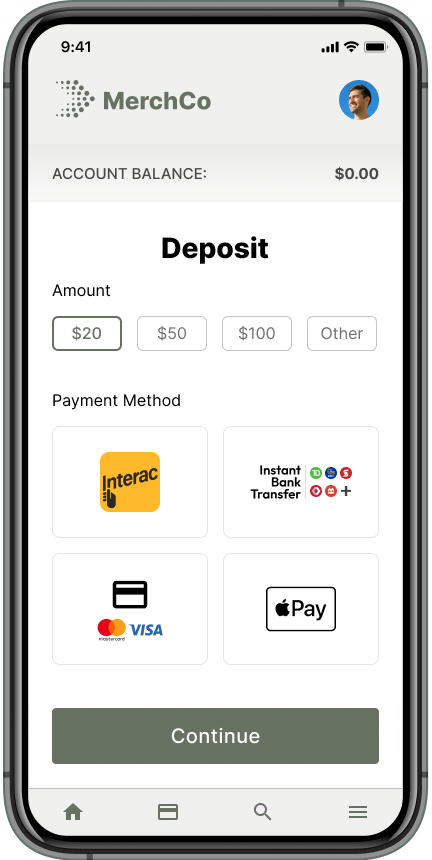 |
| Recommended The payment method is labeled as recommended or includes an approved label. Approved labels: - Recommended - Preferred - Instant & Secure | 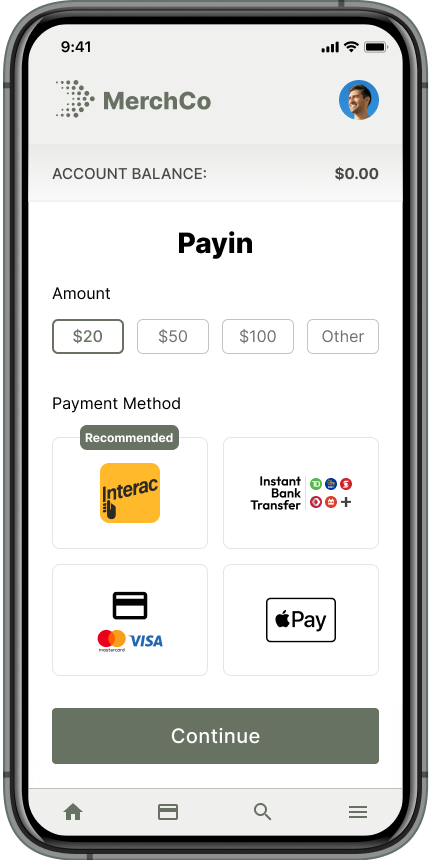 |
| Preselected The payment method is preselected on the cashier. | 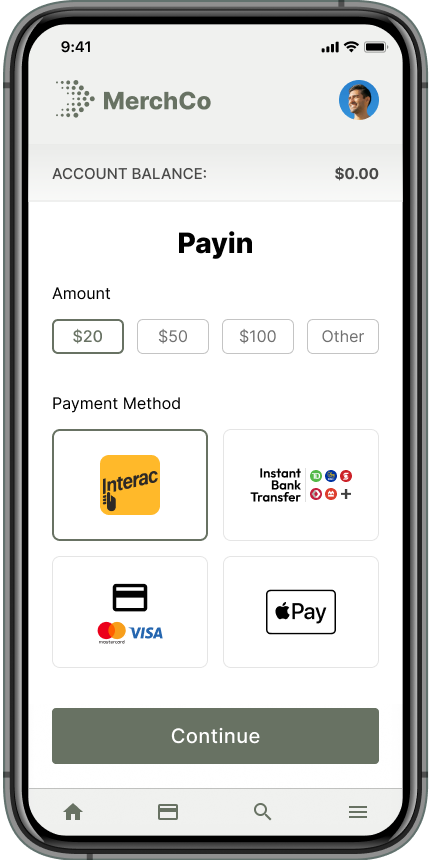 |
| Benefit Statement A benefit statement is featured below the payment method. The benefit statement pairs best with the "Recommended" or "Preferred" label on the payment method. Approved benefit statements: - The fastest and most convenient way to pay. - Pay instantly with INTERAC®. - Instant payments from all Canadian banks. The benefit statement may be displayed once the payment method is selected. | 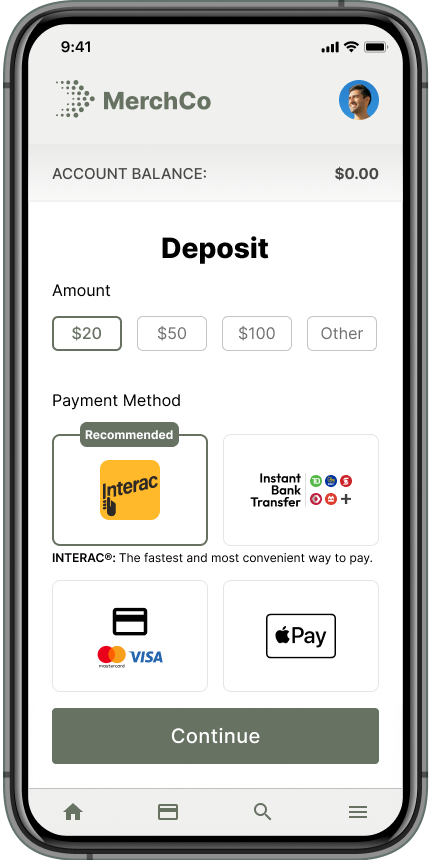 |
Transaction History and Error Messaging
After Consumers have completed their INTERAC deposit, they are redirected back to the Merchant’s site and Merchants are responsible for displaying appropriate success or error messaging based on the payment notification.
Successful or Pending Payments
Payment Timing
If the customer’s payment was successful, Merchants should display notification of payment success (for example, a receipt) and update the customer’s wagering account immediately.
If the customer’s payment is pending (for example, they paid through the INTERAC e-Transfer flow and the funds have not been received yet), Merchants should notify customers that it is in a pending state. Merchants should also specify the approximate timing when the customer’s wagering account balance will be updated after they complete the INTERAC payment (within 10 minutes), that the customer should check their email after 5 - 10 minutes if their balance hasn't been updated, and at what point they should contact customer service (after one hour).
Customer Service
If customers are having an issue with their INTERAC payment, or their wagering balance hasn’t been updated within an hour of completing the INTERAC payment, they can contact PayDirect customer service at [email protected]. This contact information can be put on the receipt or messaging to assist customers and minimize inquires to the Merchant’s customer support team.
PayDirectPayDirect is shown to first-time customers before they select their bank during the withdrawal process. It's also displayed on the footer of transaction pages, bank statements, recipient registration for INTERAC e-Transfer, and customer support communication.
Sample receipt messaging
| Transaction Status | Recommended Customer Message |
|---|---|
| Successful | Your INTERAC payment for [$XX.XX] was successful and your account balance has been updated. |
| Pending | Your INTERAC payment for [$XX.XX] is pending. Note that INTERAC funds are typically received within 10 minutes and your balance will be updated at that time. Please check your email if funds haven't been updated after this period. Contact PayDirect customer service at [email protected] if you completed your payment and your balance is not updated within one hour. |
Transaction History
For every payment done by the customer using INTERAC, Merchants should display the INTERAC name on the customer’s transaction history page.
Transaction Errors
If the customer’s transaction is rejected, the error code is provided to the Merchant through the API. Merchants can then display appropriate messaging to their customer and advise them how to proceed.
For some errors (for example, error code 4 - transaction is over the customer’s limit), we recommend allowing the customer to attempt another payment for a lower amount. For other errors (for example, error code 13 – negative information on bank account), we don't recommend allowing the customer to attempt another INTERAC payment.
Payment Error Messaging
| Error Code | Description | Allow Another Payment Attempt | Recommended Customer Message |
|---|---|---|---|
| 1 | Failed IP validation. | No | Your payment cannot be processed because your location is outside of Canada. This method supports payments only from users located within Canada. |
| 3 | Suspicious or fraudulent payment history by the customer. | No | Your payment could not be processed. Please use another payment method. |
| 4 | Transaction amount exceeds the transaction limit. | Yes, the customer can attempt a payment for a lower amount. | You have exceeded your INTERAC payment limit. Please attempt with a lower amount. |
| 7 | Maximum bank account verification attempts reached. | Yes, however they should be advised to use a different bank than before and / or contact their bank directly to resolve the issue. | You have exceeded your maximum number of bank log-ins. Please contact your bank for assistance with your online banking credentials or try a new payment with a different bank. |
| 8 | The customer cancels the transaction after a failed bank account verification. | Yes | Your payment was not completed because you cancelled the transaction. To retry your payment, log in to your bank and continue with the transaction. |
| 12 | Customer account temporarily blocked due to failed login attempts. | Yes, however they should be advised to use a different bank than before and / or contact their bank directly to resolve the issue. | Your payment was declined because your bank account is temporarily locked. Please contact your bank to unlock it, and try a new payment with a different bank. |
| 13 | Negative information on the bank account. | No | Your payment could not be processed. Please use another payment method. |
| 14 | Suspicious or negative information on the bank account. | No | Your payment could not be processed. Please use another payment method. |
| 15 | Customer's personal information mismatch. | Yes | Your transaction cannot be processed because the personal information on your bank profile does not match your account profile. To complete your transaction, please update the information registered when you created your wagering account. |
| 16 | Insufficient funds to cover the transaction. | Yes | Your payment has been declined because there are not enough funds available in your bank account. To pay, add funds to your bank account, attempt a transaction for a lower amount, or use a different method. |
| 17 | Cross-currency is not supported. | Yes | INTERAC does not support payments with this currency. Please use another payment method. |
| 22 | Suspicious or fraudulent information on the Consumer device / IP address. | No | Your payment could not be processed. Please use another payment method. |
| 98 | Generic error. | Yes | Your payment could not be processed. Please try again. |
| 99 | Customer opt out. | Yes | Your payment was cancelled. To retry your payment, log in to your bank and continue with the transaction. |
| 102 | Valid reference number, incorrect transaction amount. | Yes | You sent an INTERAC e-Transfer for a different amount than selected at checkout. Please try again and make sure the payment amount and unique code match exactly. Your previous payment will be returned to you. Please check your email for return details. |
| 104 | Transaction timeout / abandon transaction. | Yes | Your payment timed out. Please try a new payment and log in to your bank immediately to complete the payment. |
| 105 | Transaction was sent from an unsupported bank (no autodeposit). | Yes | Your payment could not be processed. Please retry with a bank that supports INTERAC e-Transfer. |
| 106 | Transaction was received in unsupported language. | Yes | Your payment could not be processed. Please use another payment method. |
| 107 | Transaction sent from a non-auto deposit bank failed. | Yes | Your payment could not be processed. Please copy the exact security answer & message reference shown before sending an INTERAC e-Transfer from your bank. |
| 108 | Unsupported bank. | No | Your payment could not be processed. Please retry with a different bank. |
Withdrawal Error Messaging
| Error code | Description | Recommended customer message |
|---|---|---|
| P001 | Failed IP validation. | Your transaction cannot be processed because your location is outside of Canada. This transaction method supports payouts only from users located within Canada. |
| P002 | Suspicious or fraudulent payment history by the Consumer. | Your withdrawal could not be processed. Please use another withdrawal method. |
| P003 | Suspicious or negative information on the Consumer identity. | Your withdrawal could not be processed. Please use another withdrawal method. |
| P004 | Suspicious or fraudulent information on the Consumer device / IP address. | Your withdrawal could not be processed. Please use another withdrawal method. |
| P005 | Negative information on the bank account. | Your withdrawal could not be processed. Please use another withdrawal method. |
| P006 | Generic system error. | Your withdrawal could not be processed. Please use another withdrawal method. |
| P007 | Risk management error. | Your withdrawal could not be processed. Please use another withdrawal method. |
| P008 | Invalid phone number provided by the Consumer. | Your withdrawal could not be processed because you entered an invalid phone number. |
| P009 | Invalid email provided by the Consumer. | Your withdrawal could not be processed because you entered an invalid email address. |
| P010 | User failed to accept the payout transaction. | Your withdrawal could not be processed because you did not accept the transaction. |
| P011 | Payout has auto-expired before the user could accept. | Your withdrawal has expired. Please initiate a new withdrawal transaction and ensure that you accept the funds before the expiry date included in the email notice. |
Best Practices Checklist
This checklist includes the recommendations made throughout this document and can be used during the INTERAC integration.
| Item to Complete | |
|---|---|
| ☐ | Add the INTERAC logo to your cashier or payment page. |
| ☐ | Provide an explanation on the cashier that describes what INTERAC is, applicable limits, and what is needed to use it (specifically the customer's online banking login credentials). See Sample cashier copy for recommended cashier copy. |
| ☐ | Ensure customers will receive appropriate success messaging and their wagering balance will be updated when they complete their payment. |
| ☐ | Ensure customers will receive appropriate error messaging if they are unable to complete their payment. See Payment error messaging. |
| ☐ | Ensure customers will receive appropriate message for pending transactions. |
| ☐ | If offering payouts, set up a withdrawal page to collect the customer information needed to process payouts. See Sample cashier copy for withdrawals. |
Updated 8 months ago