

INTERAC Custom Payment Flow
Options to customize the Interac payment flow to align with your company's branding.
Overview
Paramount Commerce offers various customization options for the INTERAC payment flow, allowing you to create a branded user journey tailored to your company. You can customize your payment flow by accessing the Paramount Commerce Merchant Portal.
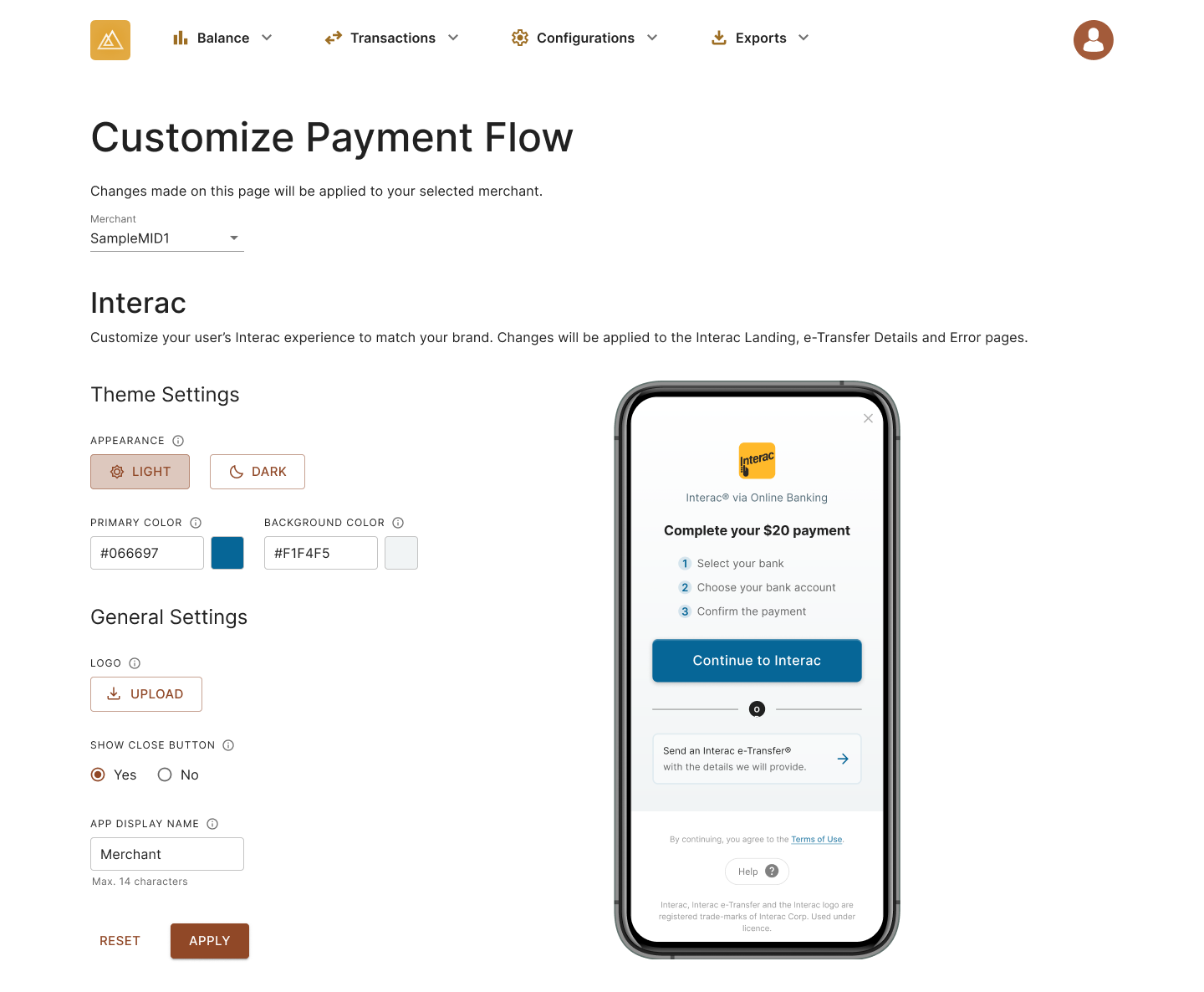
Set a Theme & Appearance
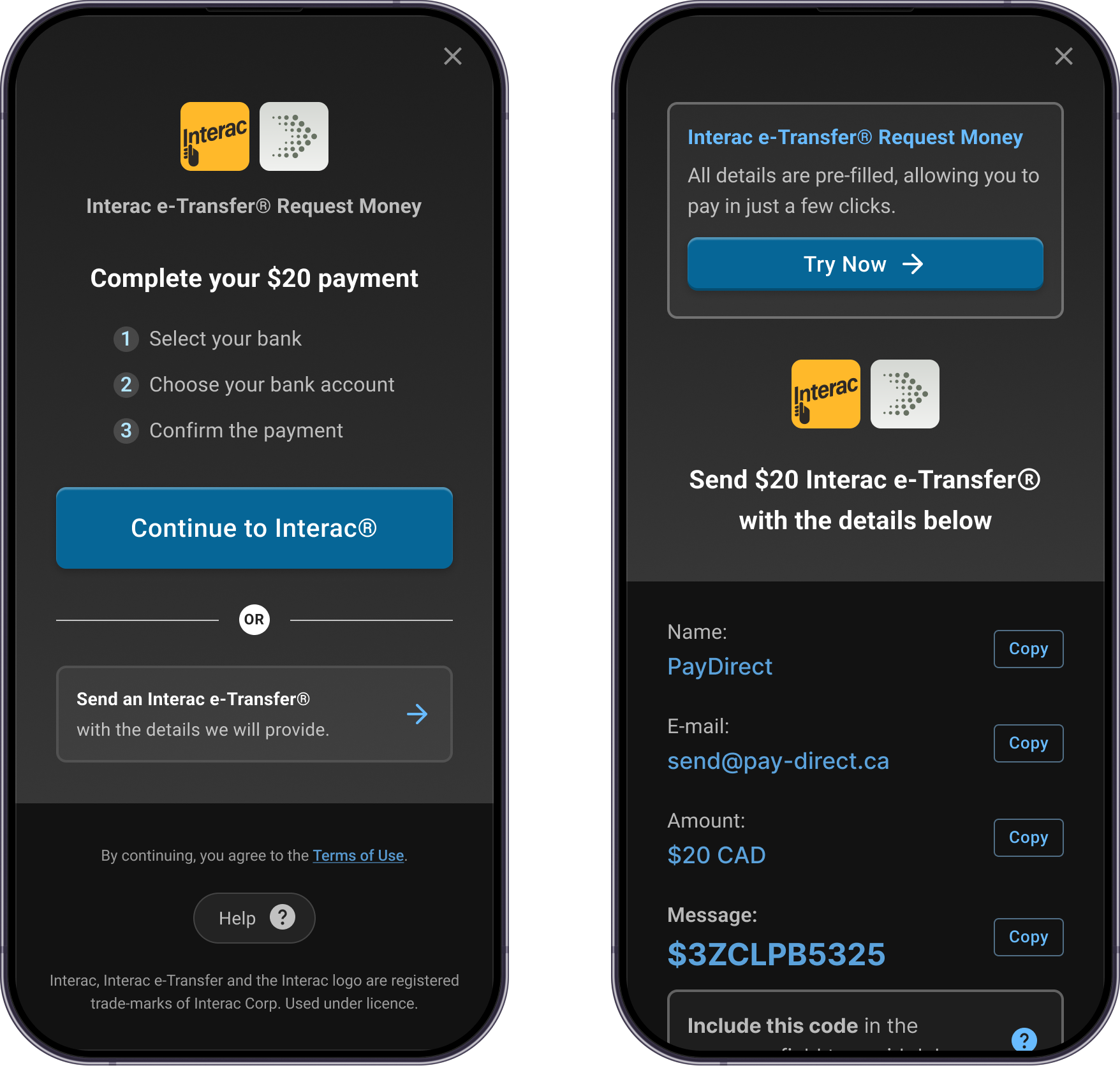
You can set your brand colors and toggle between light and dark modes. Light mode is set by default.
- Open the Paramount Commerce Merchant Portal and login in
- Under Admin, go to Configurations > Customize Payment Flow
- Select Dark to activate dark mode
- Choose a Primary Color and/or a Background Color
- Preview the selection before making the change
- Click Apply
- Click Confirm
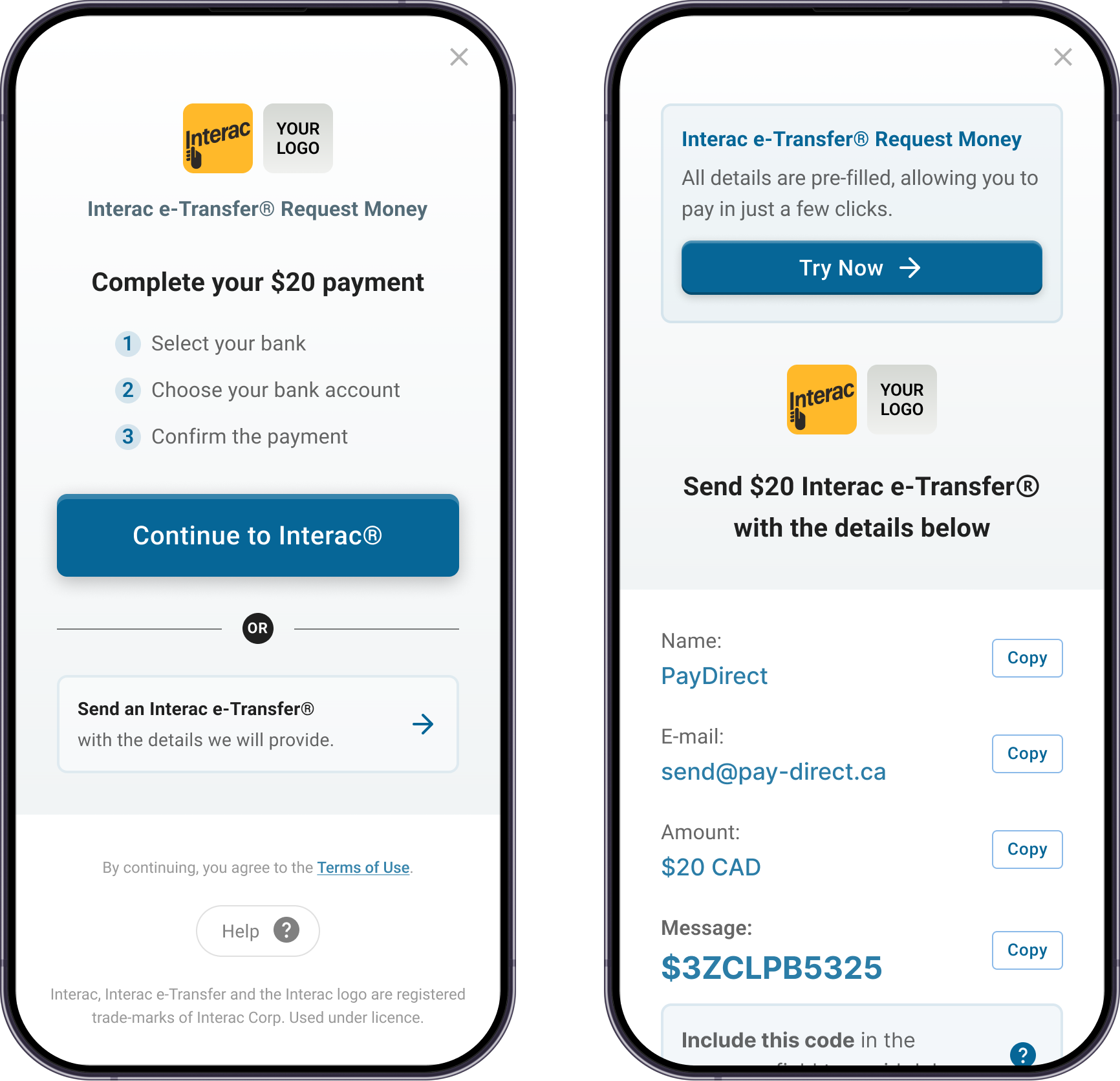
Upload a Logo
You can upload your logo and co-brand the payment experience. Your logo will be displayed next to the Interac Logo.
File requirements for logo:JPEG, PNG or SVG format | min: 128x128px | max: 30kb
- Open the Paramount Commerce Merchant Portal and login in
- Under Admin, go to Configurations > Customize Payment Flow
- Click Upload button
- System file search is triggered
- Select a logo that meets the correct file requirements
- Preview the logo before making the change
- Click Apply
- Click Confirm
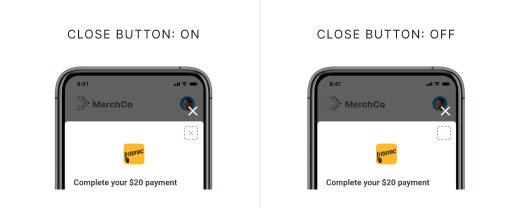
Toggle Close Button
Disable the close button if the container in your flow already has one.
Customize App Name
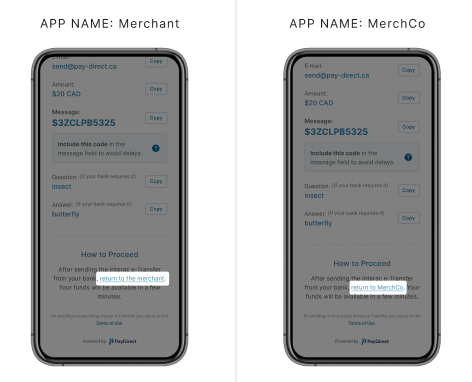
Provide your user-facing app name and have it replace the term Merchant throughout their Interac experience. This customization impacts the e-Transfer Details page and Error Screens.
Contact Merchant Integrations if you have any questions about the contents of this guide.
Email Communications
By branding your payment flow in the Merchant Portal, you also add branding to email communications sent to your users (for example, Interac e-Transfer reminder emails and security-question answers). The following settings are applied to the following email communications (Reminder, Success, Rejection, Refund, Payout Question and Answer):
- Logo: Your uploaded logo is shown in the email for co-branding.
- App Display Name: Your custom app name is used in the email heading
- App Display Name: Your custom app name used in the email body
- Primary color: Your chosen primary colors are used in the email layout.
Note: Dark mode is not applied to emails. Email templates use light/default styling; only the colors and branding elements above are carried over. If you use dark mode in the in-app payment flow, that setting does not change how the emails are styled.

Email Communication Branding
Updated 7 months ago