

Transaction Details
Overview
Transaction details is the complete record of a transaction. Open it by clicking a row in Transaction views, or by navigating directly to the transaction's URL. Details pages are linkable, so you can share one with a teammate or attach it to a support ticket.
Where Transaction views is built for scanning and grouping, Transaction details answers who was involved, how the funds moved, what state the transaction is in, and what happened to it along the way.
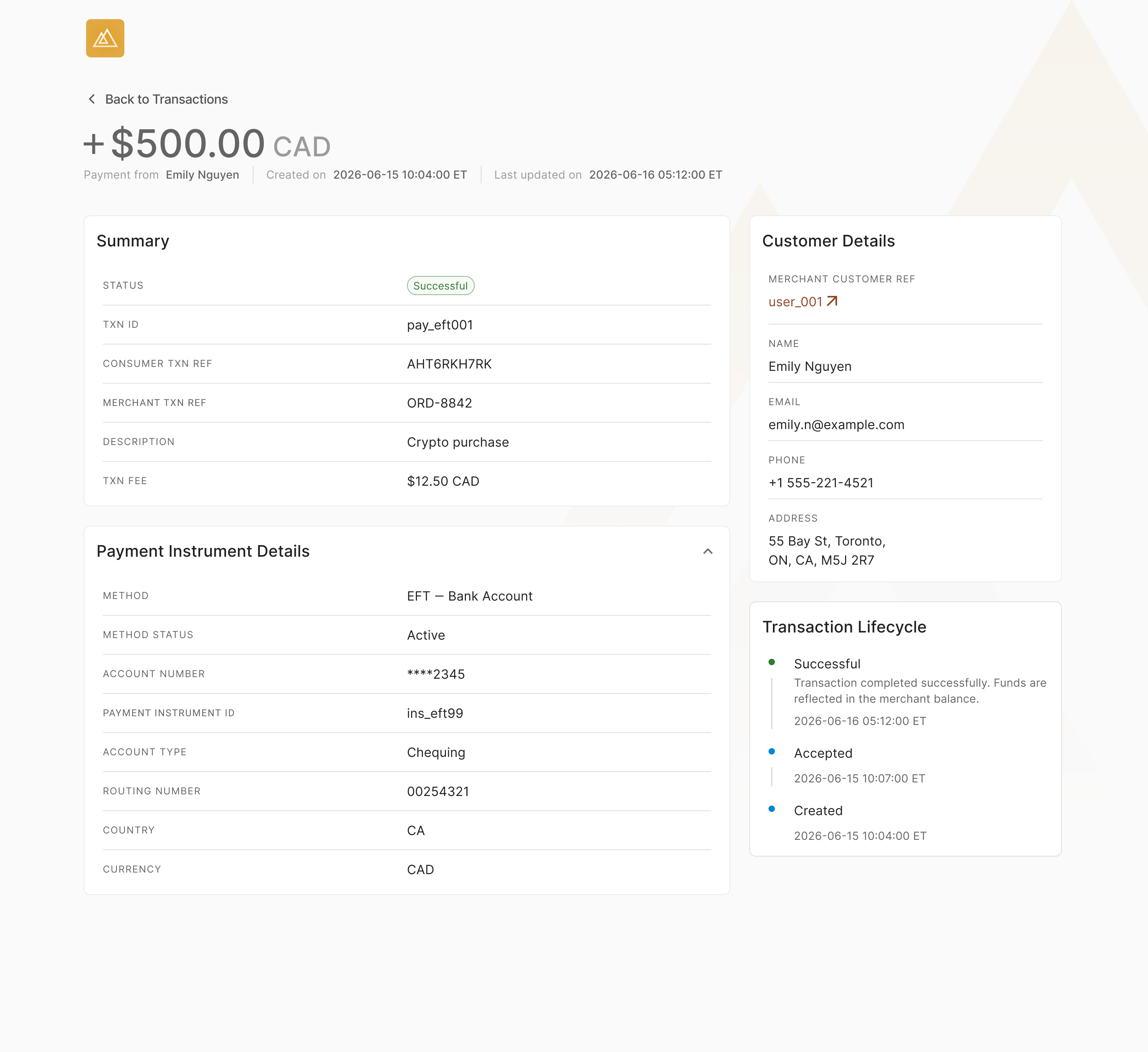
Example transaction details page
What the page contains
The page is organized into sections. Sections that don't apply are hidden rather than shown empty, so two transactions may not look identical.
| Section | What it tells you |
|---|---|
| Header | The amount and currency, signed to show direction of funds, who the transaction was with, and when it was created and last updated. |
| Summary | The current status, the identifiers you use to find and reconcile the transaction, any description you supplied, and the fee applied. |
| Customer | The person or business on the other side of the transaction, along with your own reference for them and any contact and address information on file. |
| Payment instrument | How the funds moved, the payment method used, and details about it. |
| Lifecycle | Every state the transaction has passed through, with a timestamp for each. |
| Return Details | Why the bank returned the transaction, when the return was recorded, and the fee applied. Shown only on returned transactions. |
| Additional information | Context that only applies to some transactions, such as cancellation, retry activity, or a decline reason. |
Header
The amount is signed to show direction, money in or money out, and is always shown with its currency. Alongside it you'll see the individual or business the transaction was with, the time it was created, and the time it last changed state. Times are stored in UTC and displayed in your account's timezone.
Summary
The summary holds the identifiers and status you need for reconciliation and support.
Each transaction has a transaction ID assigned by Paramount Commerce. This is the identifier to quote when contacting support, and the one that appears in webhooks and API responses. The summary also shows your own transaction or order reference and the customer transaction reference, if you supplied them when creating the transaction. The summary also shows the merchant account the transaction belongs to, any description you provided for display, and the fee applied.
Customer
This section identifies the party on the other side of the transaction, the payer on a payment, or the recipient on a payout. Depending on how the transaction was created, it may show an individual's name or a business name, along with contact details and an address.
Your own reference for this customer is shown here and is clickable: selecting it opens Transaction views filtered to that customer, so you can see their full history without building a search.
Contact information is masked in the portal. The section is hidden entirely for transaction types that have no customer, such as movements between your own accounts.
Payment instrument
This section describes how the money moved: the payment method used, and the details of the account or address involved.
For bank accounts, you'll see the account type, routing information, and the last four digits only. Full account numbers are never displayed in the portal. The name associated with the source/destination account will be displayed here.
Lifecycle
The lifecycle timeline shows each state the transaction has entered and when, so you can see how far it has progressed and where it stopped.
| Status | Meaning |
|---|---|
| Created | The transaction has been created and is being evaluated. |
| Accepted | Submitted to and accepted by the payment network. The final outcome arrives asynchronously. |
| Successful | Completed. Funds are final. |
| Returned | Funds were returned by the bank after the transaction was accepted. |
| Rejected | Rejected by the bank or payment network. |
| Canceled | Transaction has been canceled by the merchant. |
| Declined | Declined before submission because a requirement was not met. |
Not every status applies to every transaction. Payments and payouts follow slightly different paths, and most transactions pass through only a few of these states.
Return Details
Why the bank returned the transaction, when the return was recorded, and the fee applied. Shown only on returned transactions.
| Field | What it tells you |
|---|---|
| Return Code | The code the bank sent, with its official Payments Canada Standard 007 description. For example, 901 NSF (debit only). See EFT Return Codes for the full list. |
| Return date | The date the return was recorded against the transaction. |
| Return Processed Date | When Paramount Commerce processed the return notification. |
| Return fee | The NSF or return fee assessed on your merchant account for this return. Shows zero where no fee applies, and until the fee is assessed. |
Return Date Is Our Recording TimeReturn date and Processed at hold the same value today, which is when we
recorded the return. The bank's own return effective date is not yet
available, so do not reconcile Return date against a bank statement date.
The returned amount is the transaction amount in the header. EFT returns are always for the full amount.
Return reason is the bank's code for the outcome. The status reason in Summary is the Paramount Commerce code for the same outcome, so the two describe one return in two vocabularies.
Returns are recorded automatically and deducted from your merchant account balance. Payments and payouts both carry this section.
Additional information
Some transactions carry context that others don't. These blocks appear only when they apply:
- Constraints: the assurances requested on the transaction
- Metadata: any key-value pairs on the transaction
Updated about 1 month ago