

Two-Factor Authentication (2FA)
Overview
To enhance the protection of your transactional data, our merchant portal now offers optional Two-Factor Authentication (2FA) via email verification. When you enable 2FA, you'll be prompted to enter a one-time code sent to your registered email each time you sign in.
Key Benefits
- Stronger Account Security: Add an extra layer of protection by requiring both your password and an authentication code, making it much harder for unauthorized users to gain access—even if your password is compromised.
- Improved Data Protection: Help safeguard your sensitive transactional data from potential breaches.
- Supports Compliance: Help meet internal and external security standards by introducing stronger authentication practices.
How to Enable Two-Factor Authentication Via Email
Optional Enablement
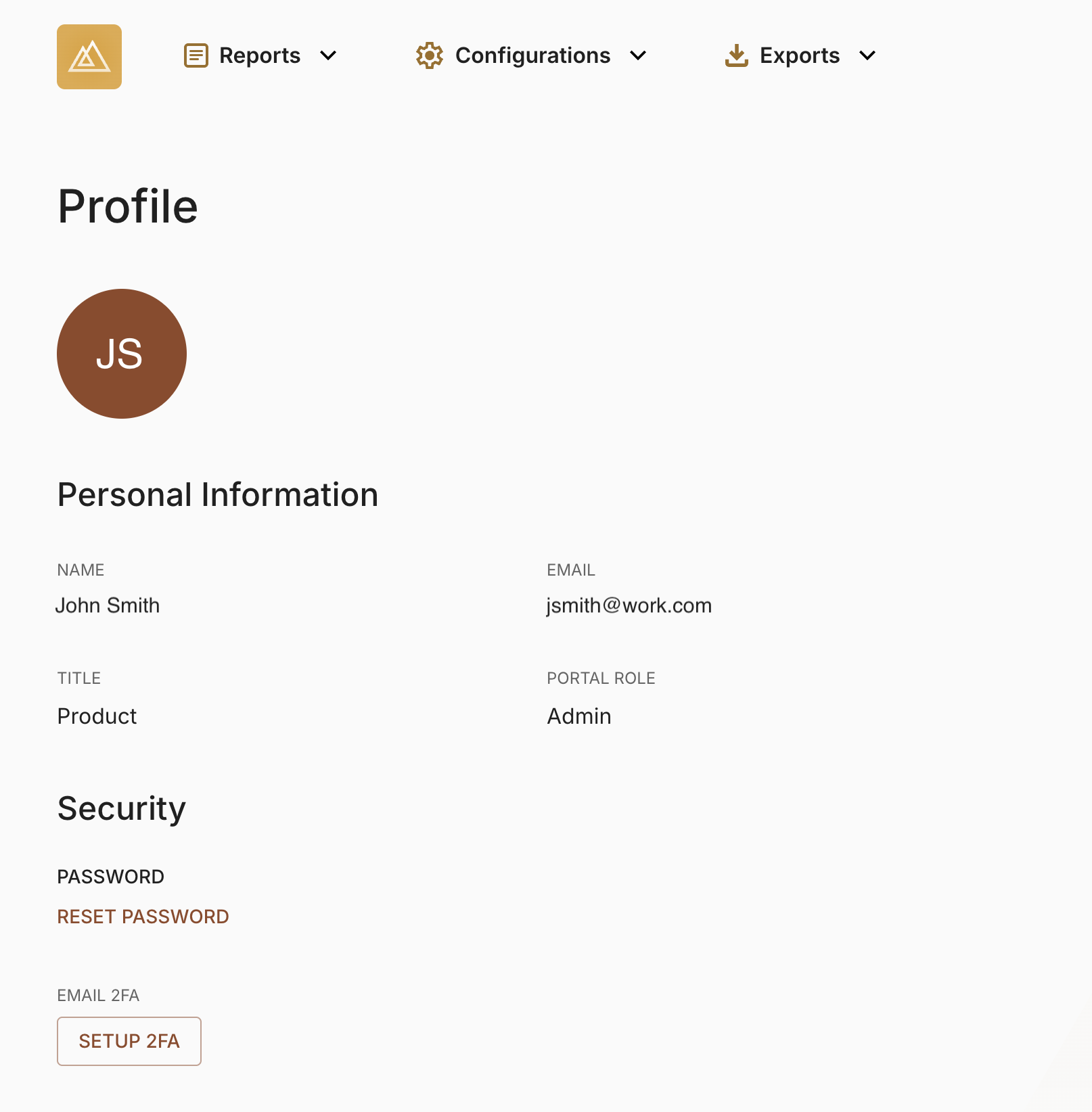
- Go to your Profile page
- Click the Setup 2FA button
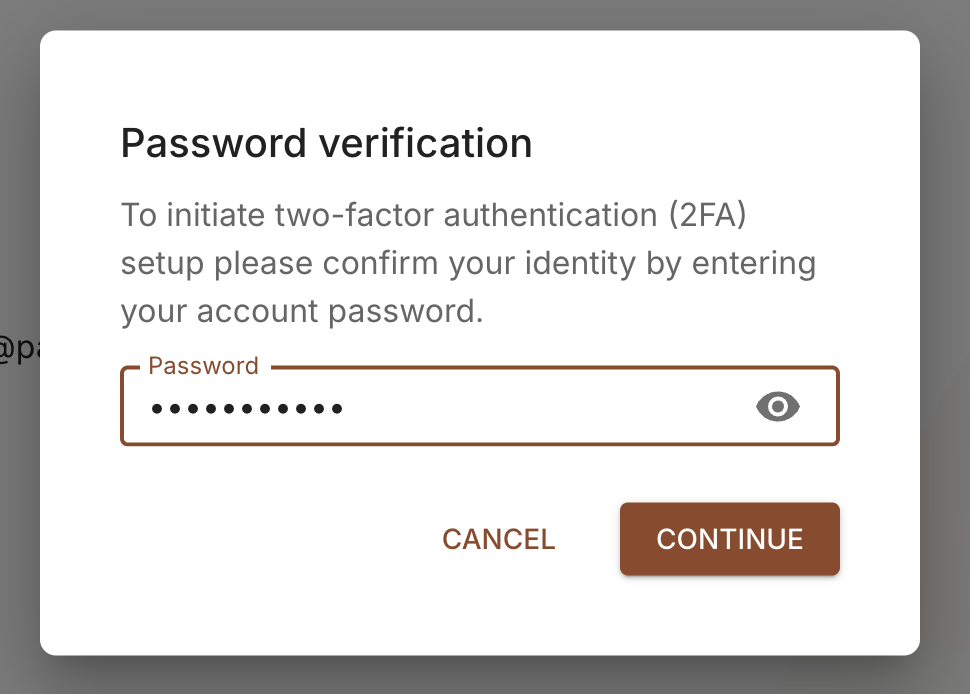
- Confirm your identity by entering the password you use to sign in to the merchant portal and click the Continue button
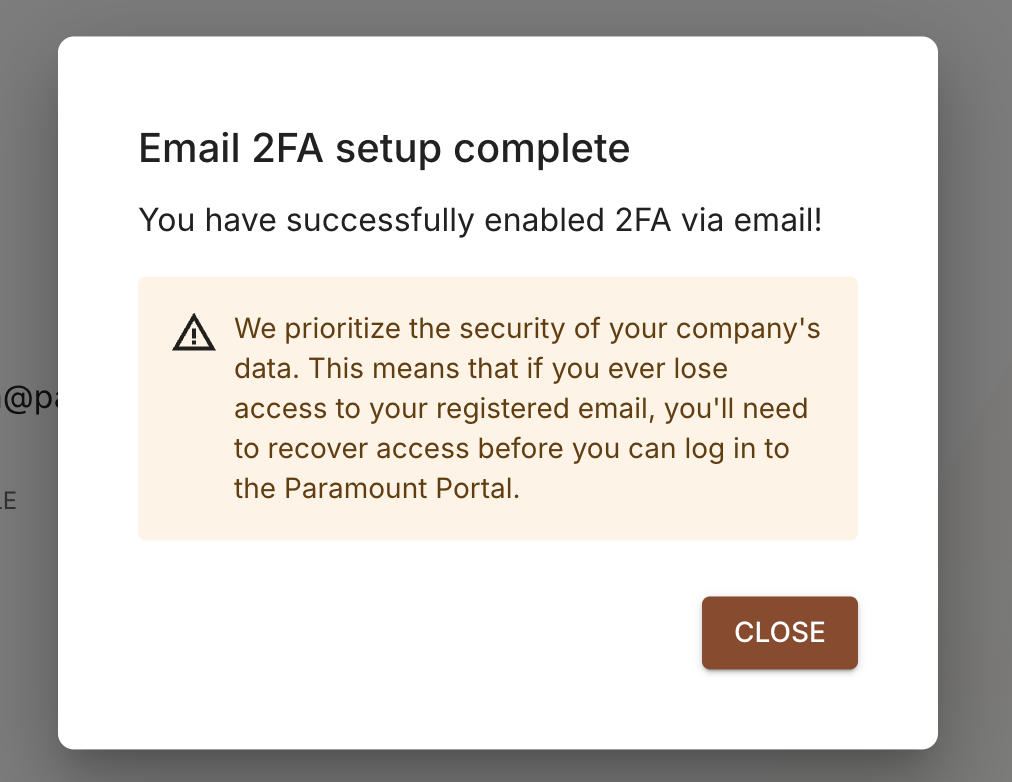
- That's it! A confirmation message will appear, indicating that two-factor authentication has been activated using the email associated with your merchant portal account
Admin Enforcement For All Users in The Organization
If you are an Admin user, you can enforce two-factor authentication for all users in your organization who have access to the merchant portal.
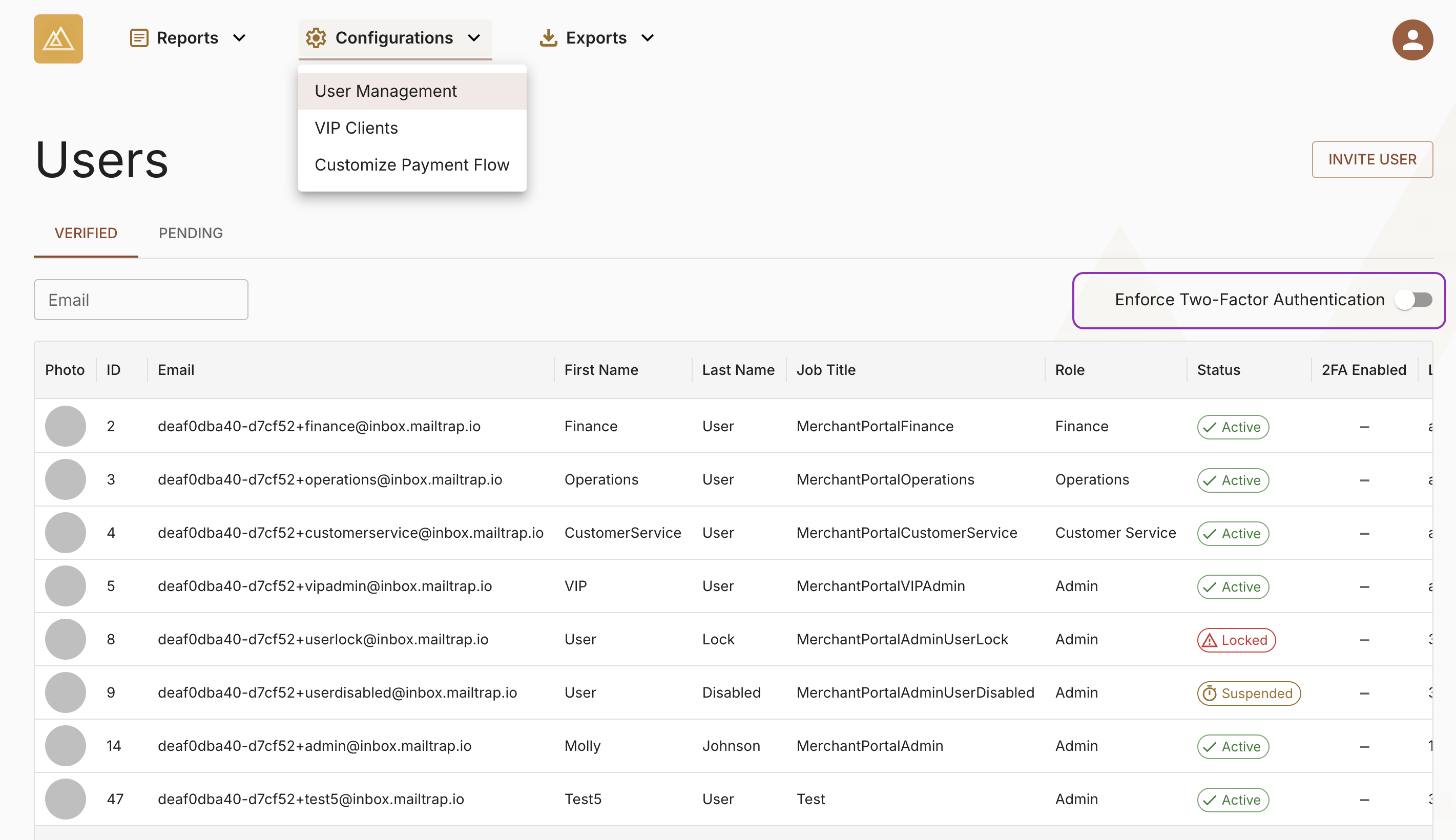
- Go to the User Management page
- Turn on the Enforce Two-Factor Authentication toggle
- Click the Confirm button on the Confirmation modal
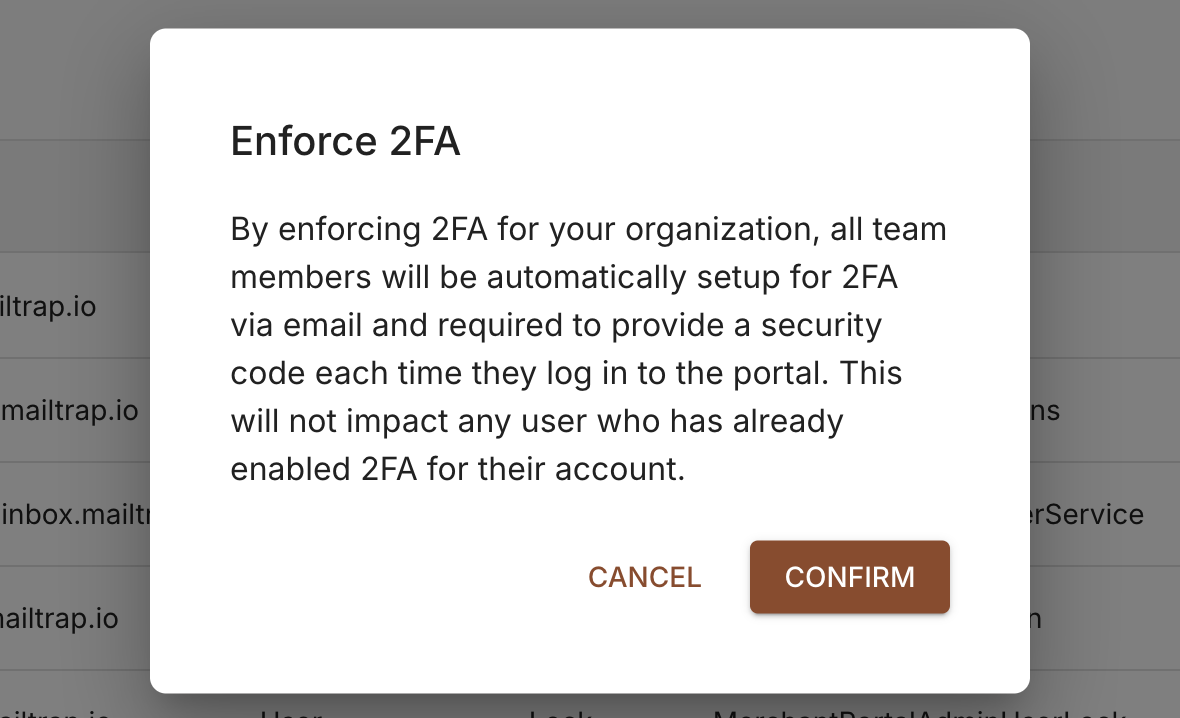
- A confirmation toast will appear confirming that you've successfully enabled 2FA for your organization. All users will be required to enter a security code sent to their registered email the next time they sign in
Frequently Asked Questions (FAQs)
For additional information not covered in this how-to guide, you can visit the Two-Factor Authentication FAQs page.
Updated about 1 year ago
Did this page help you?